
Within Enterprise Health, both patients and clinicians can create and send messages back and forth. The patient can send a message from within the Patient Portal. The clinician can send a message by utilizing the Chat tab.
Conversations from the Portal
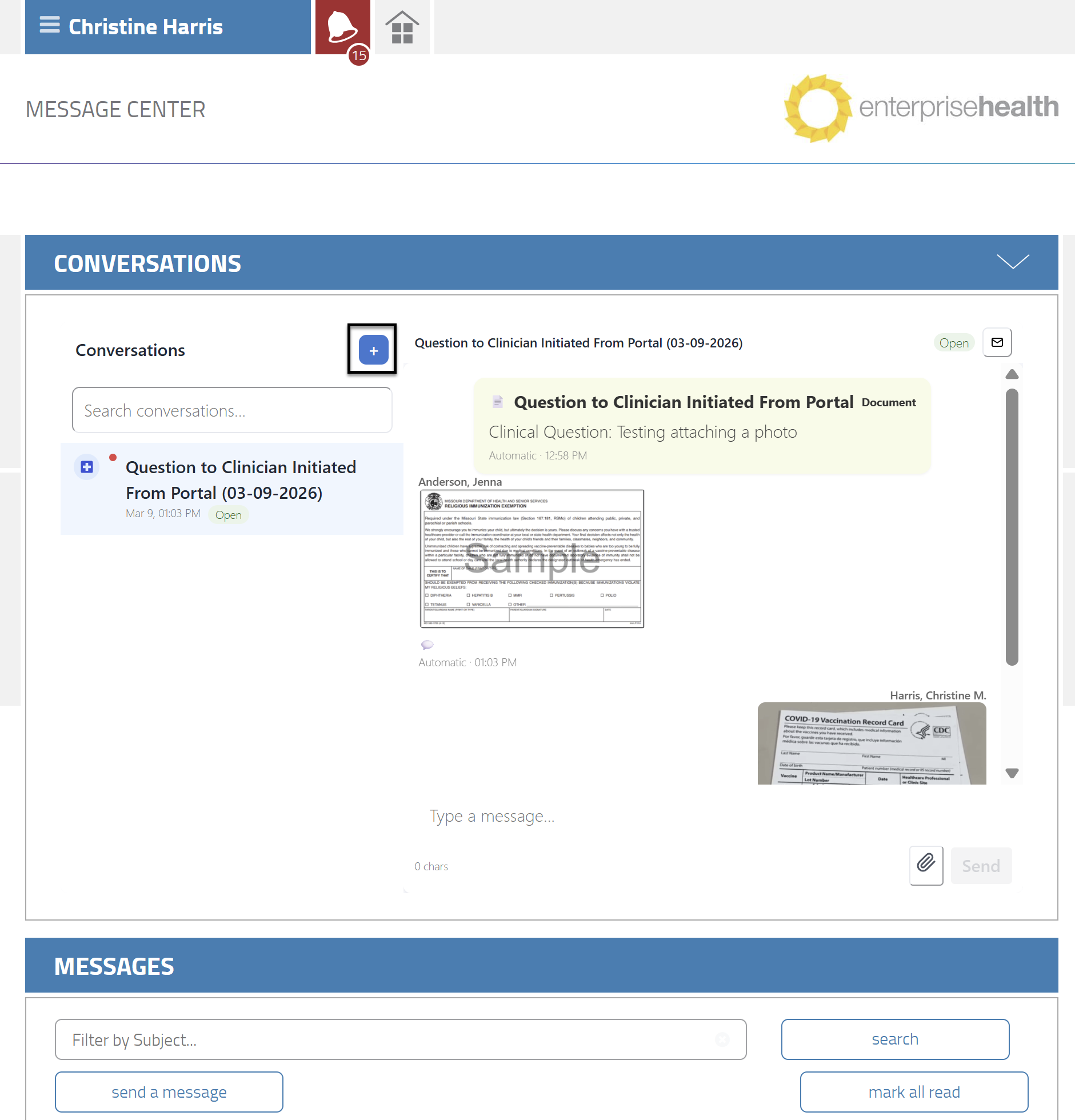
Within the Portal, the Conversation section will contain all chats. The Conversation section is contained within the Message Center. This is where you can ask questions or chat back and forth with the clinicians. Click on the plus sign (+) button to initiate a chat.
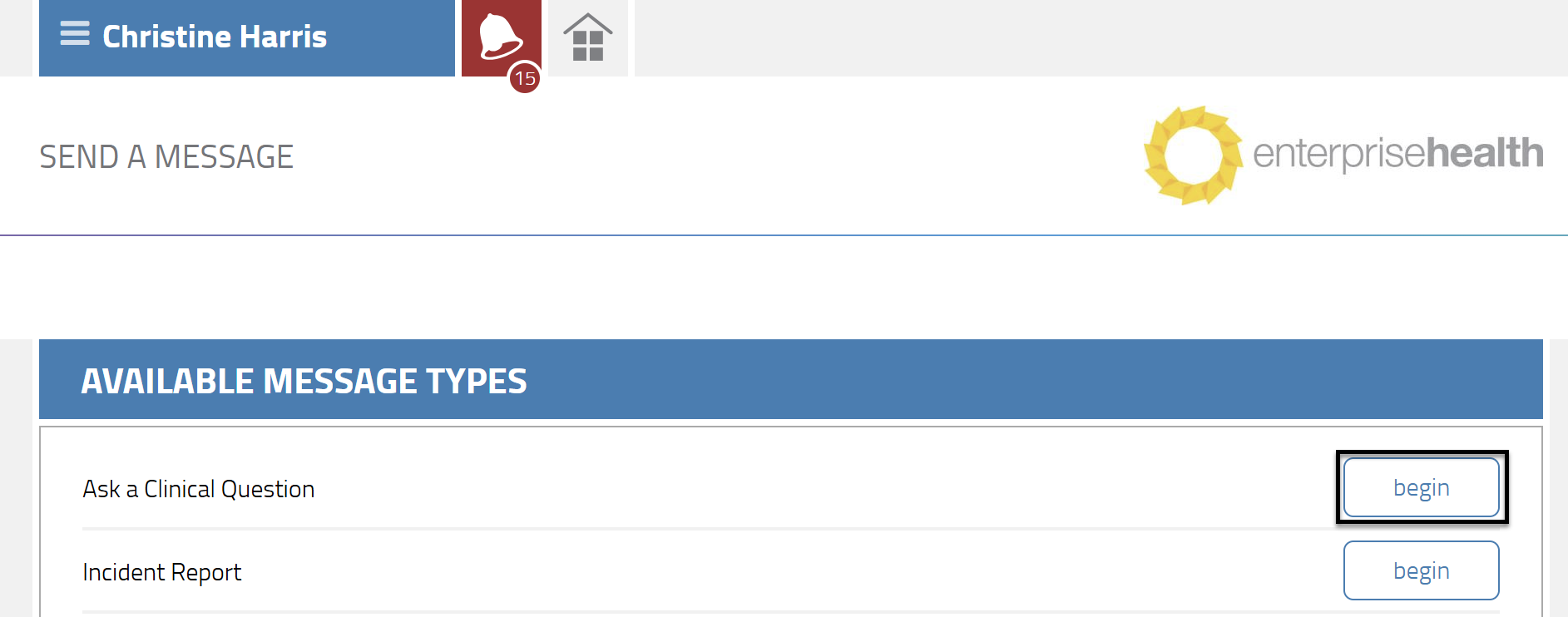
Click on the begin button next to the questionnaire that best describes the chat. This is the same area that you would land if you clicked on the send a message button within the Messages section.
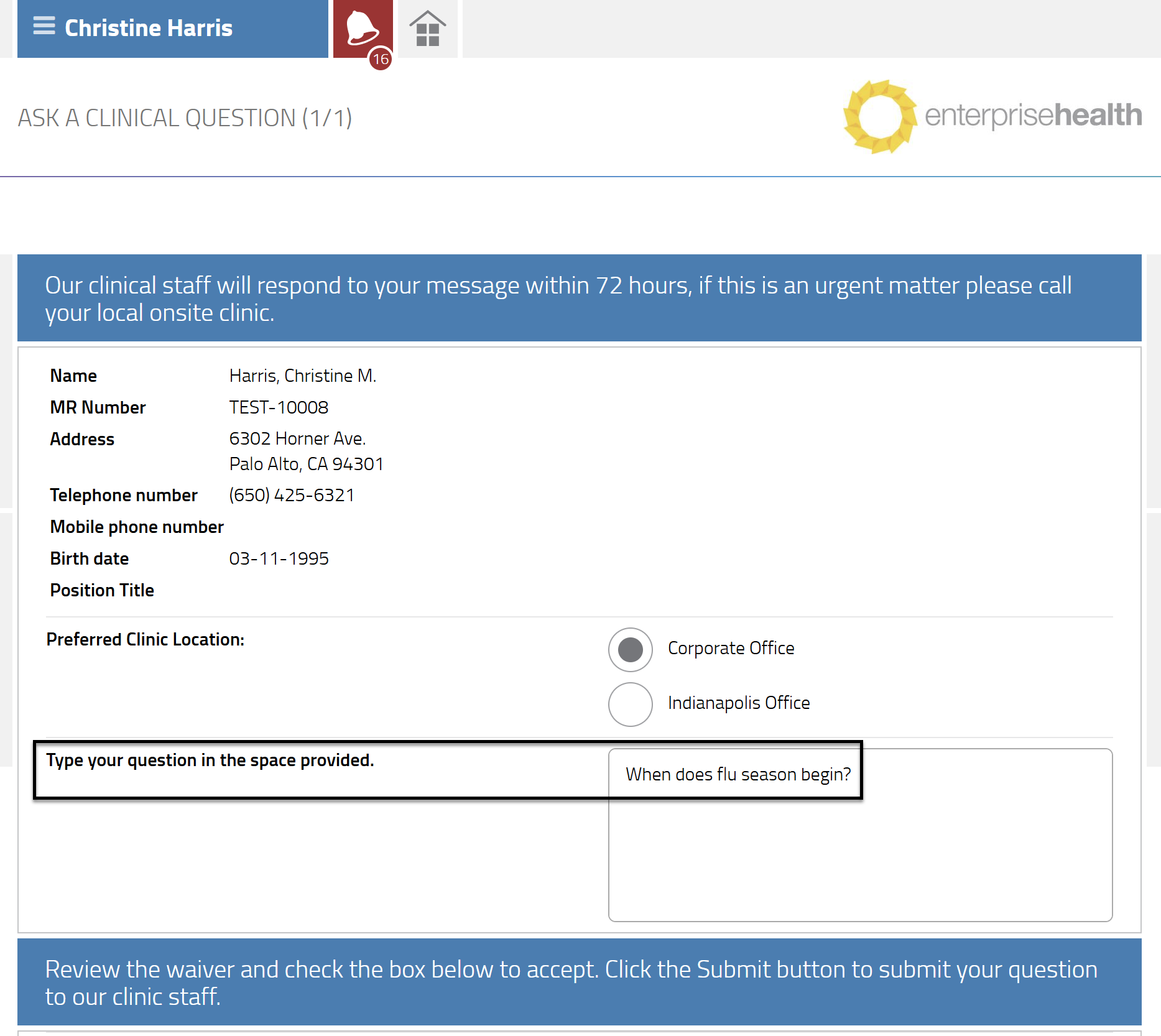
Add the question and click Submit when complete.
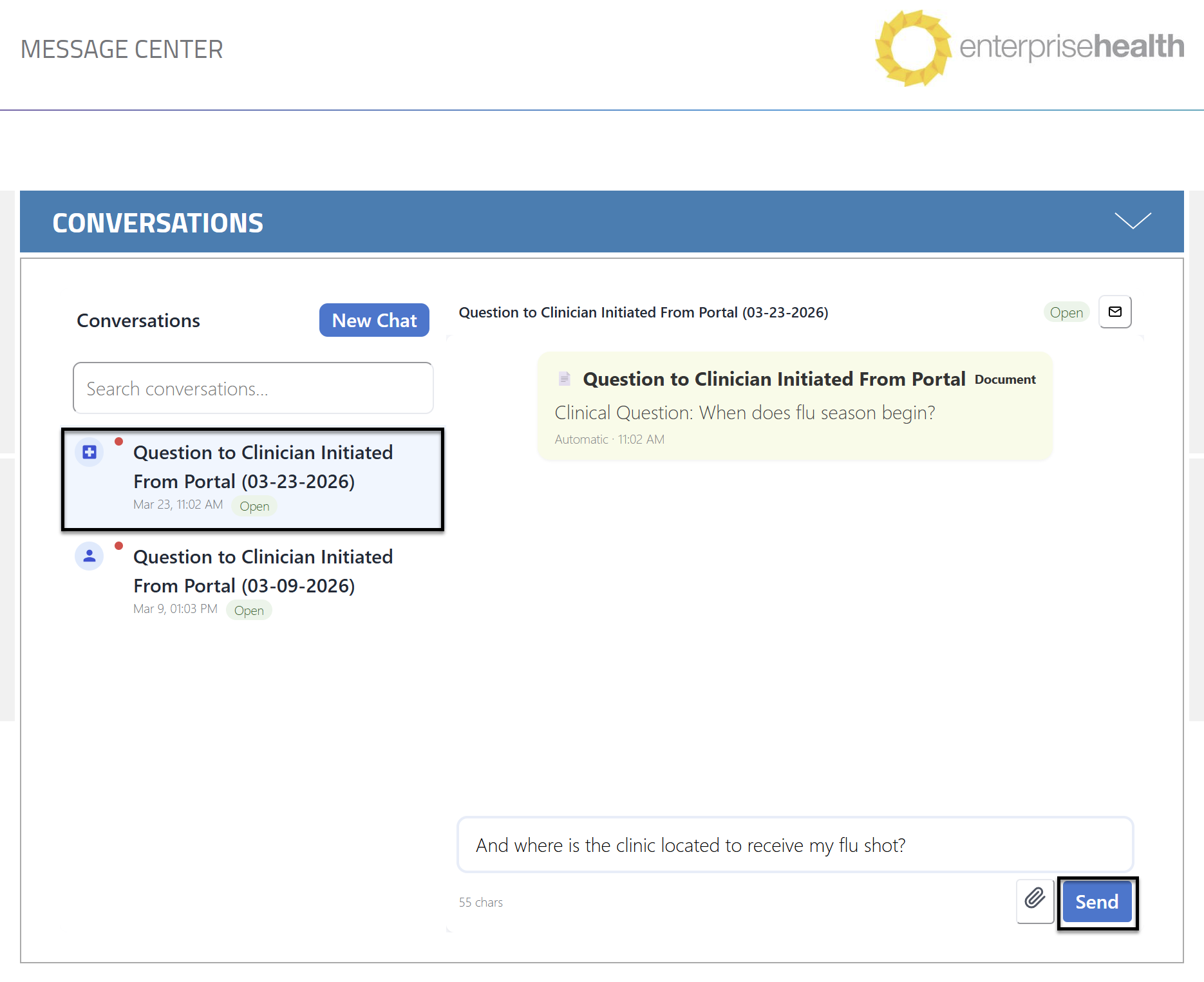
If you wish to continue an existing chat, click on the chat on the left-hand side and add your questions or statements. You can attach images to the chats as well using the paperclip icon. Click the Send button when you have completed typing the question or attach the image. The Enter button will also send the chat.
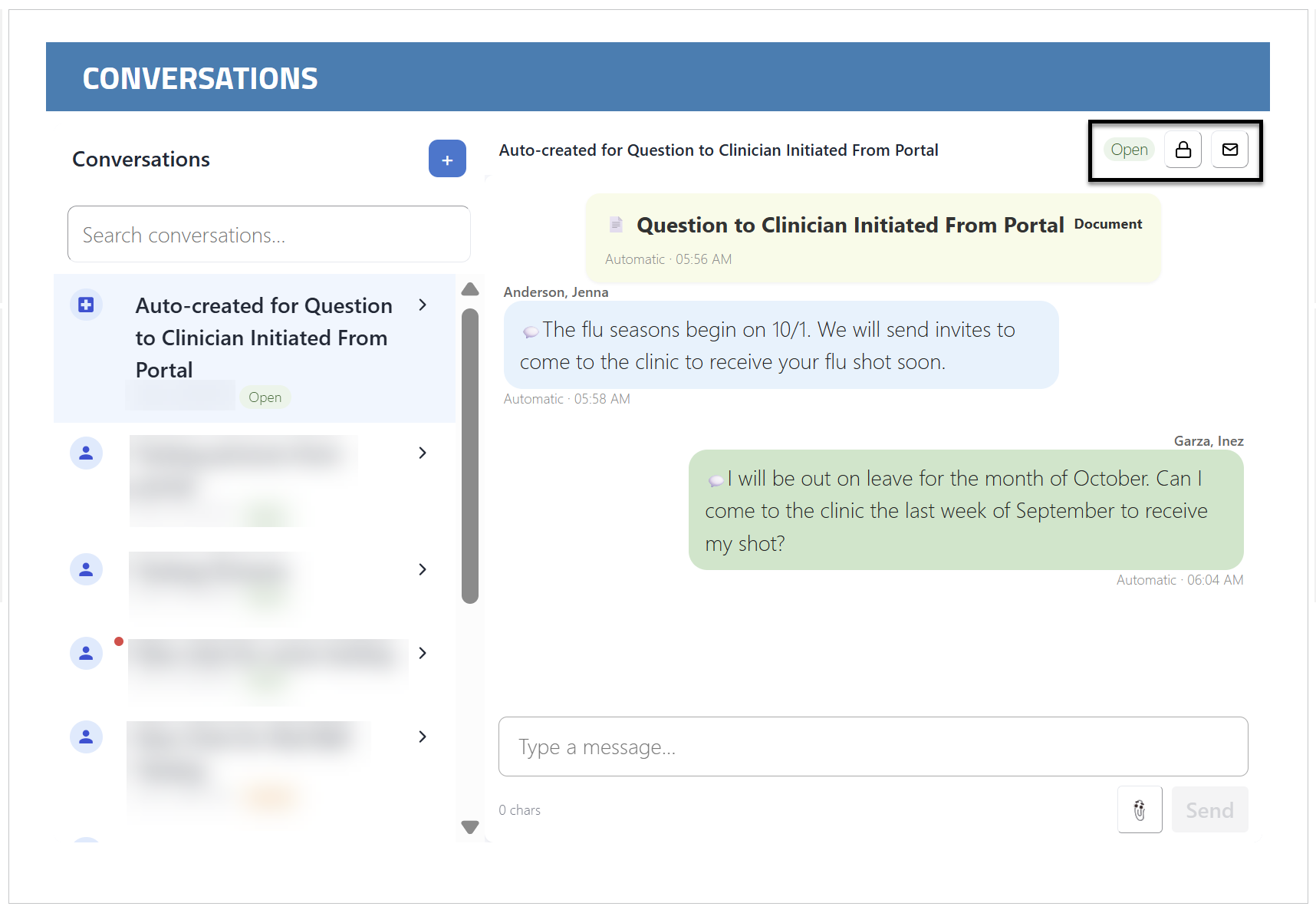
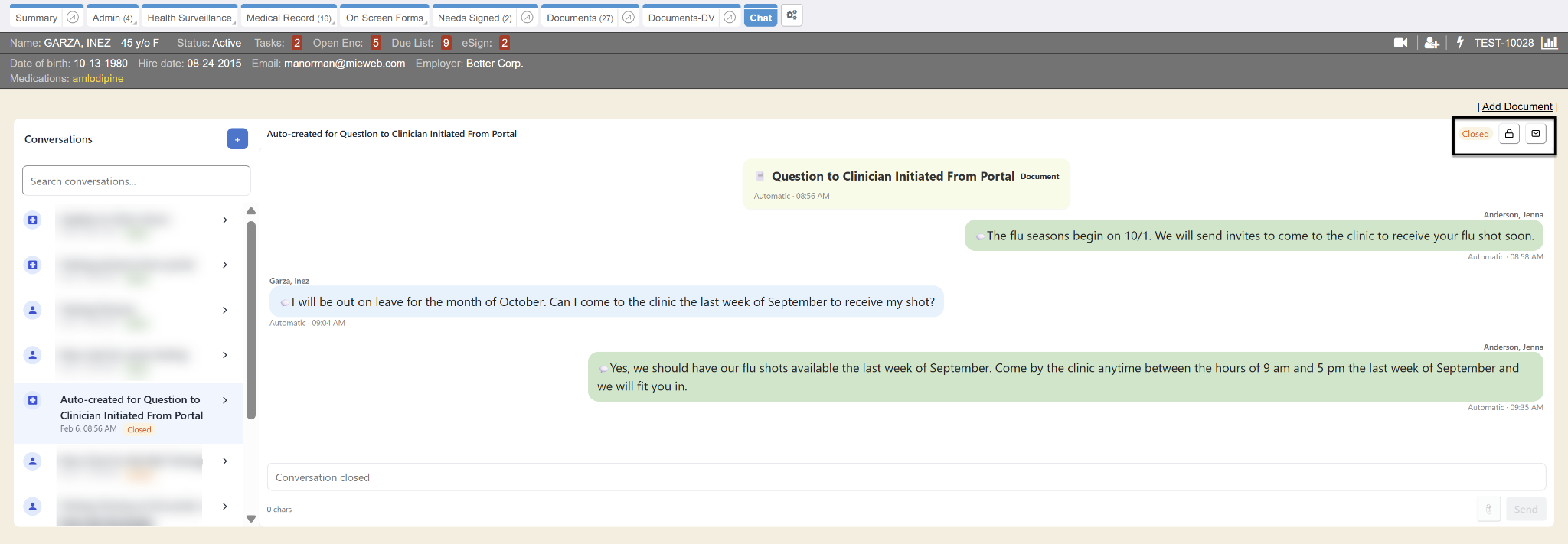
Once the conversation has been completed, you can close the chat by clicking on the lock icon. You cannot send additional messages when a conversation is closed. You can reopen a conversation by clicking on the lock icon. As long as the conversation is open, you can add additional messages. The clinicians can also close the conversation. You can see whether a conversation is open or closed in the top-right corner next to the lock. Messages can be marked as unread by clicking on the envelope icon.
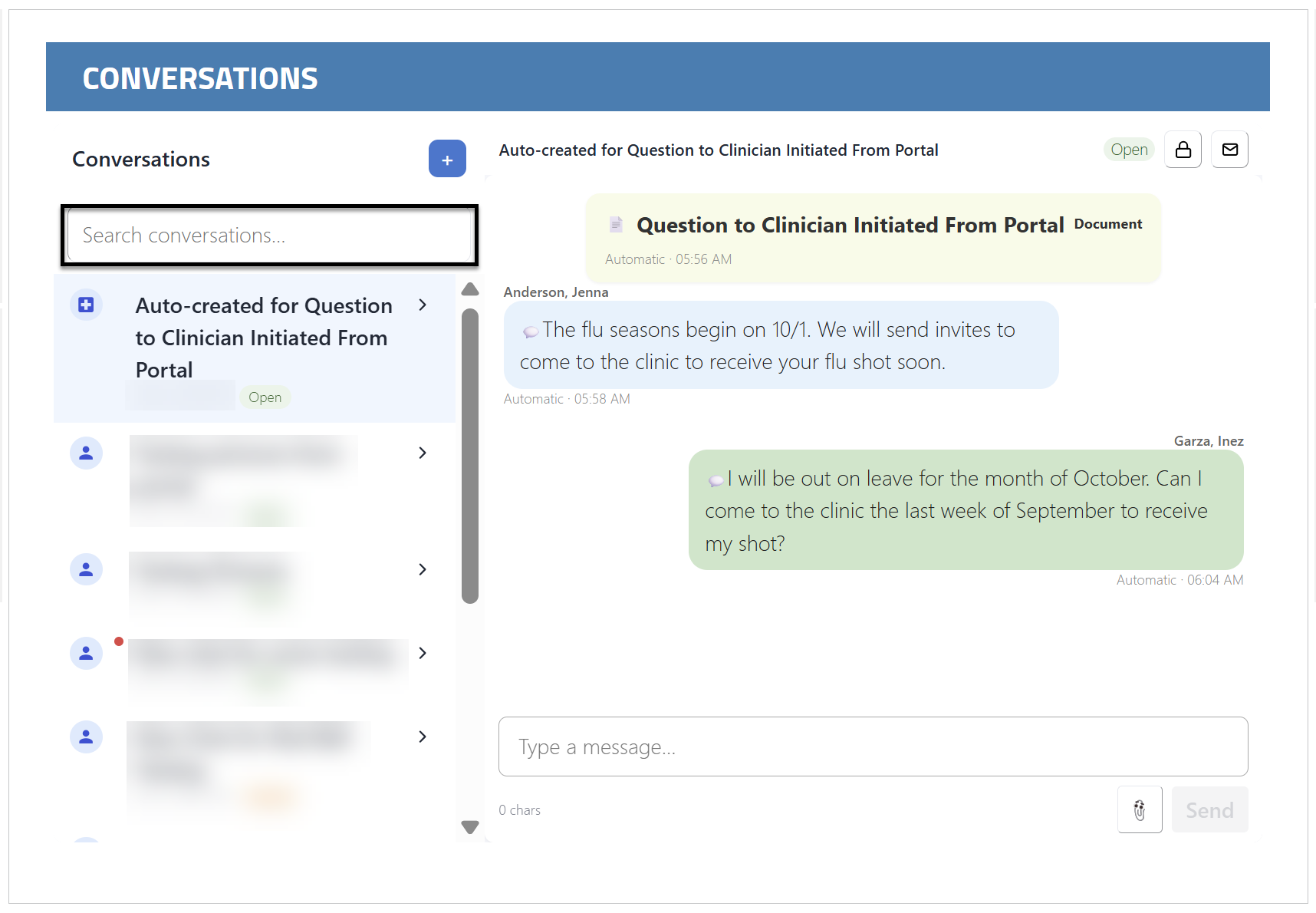
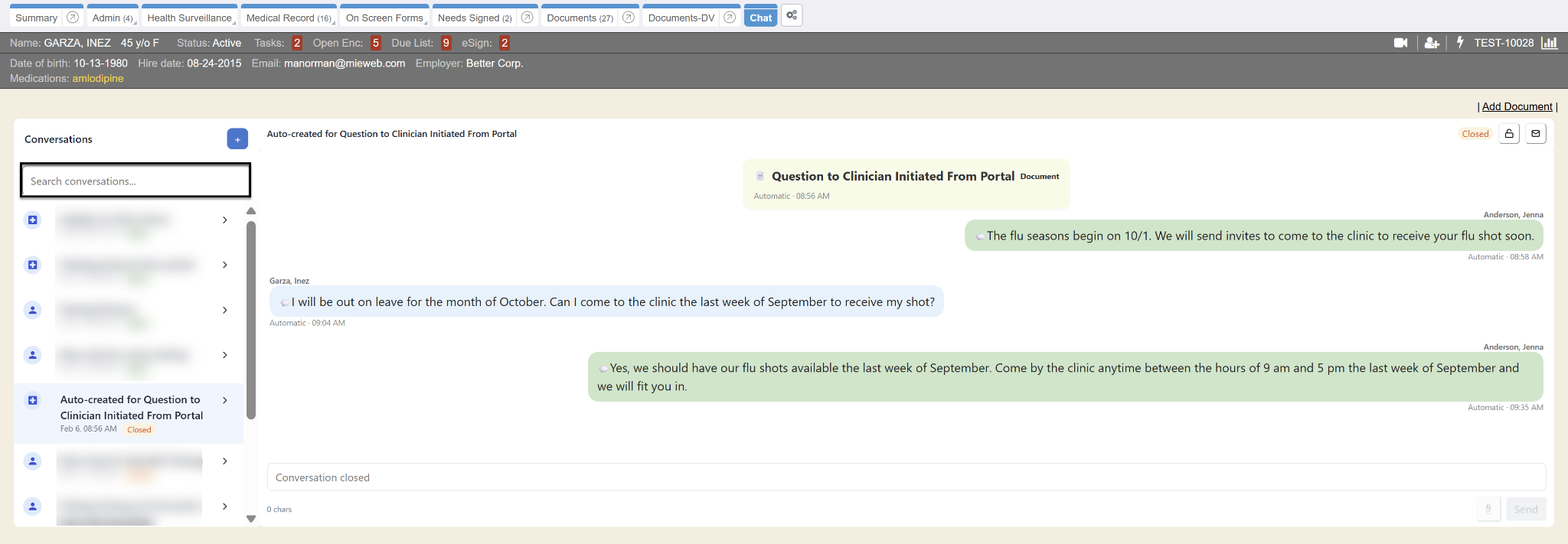
There is also Search functionality to help locate any previous conversations. The search bar is above the list of chats on the left-hand side. Begin typing the search criteria and the list of chats will shorten to only the chats that contain the words that were searched.
Tasking
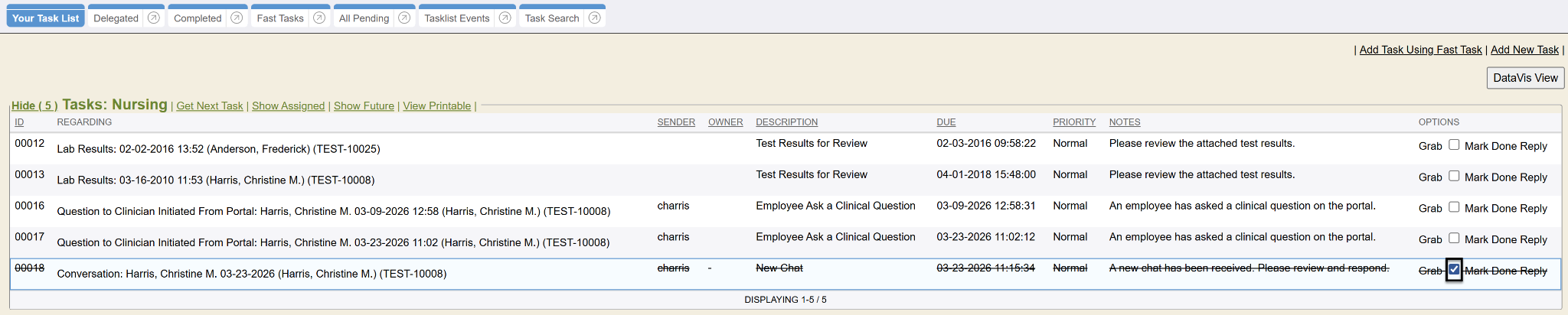
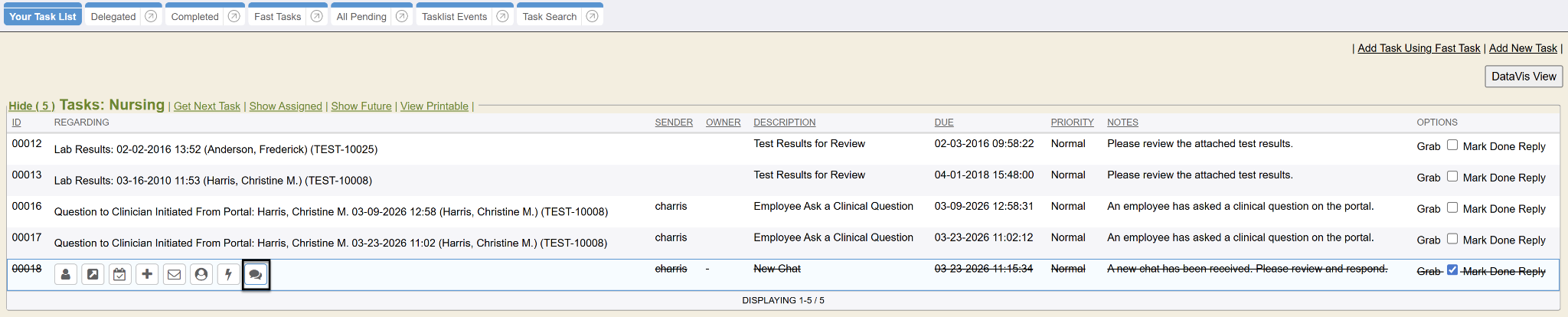
Tasking may be set-up to allow for tracking and notifications around new chats. From the Tasklist, you can go directly to the Chat tab to respond to any outstanding chats. To close the task as well, click the checkbox and then click the conversation bubble that appears when hovering over the task. Clicking the conversation bubble button will take you directly to the Chat tab to respond.
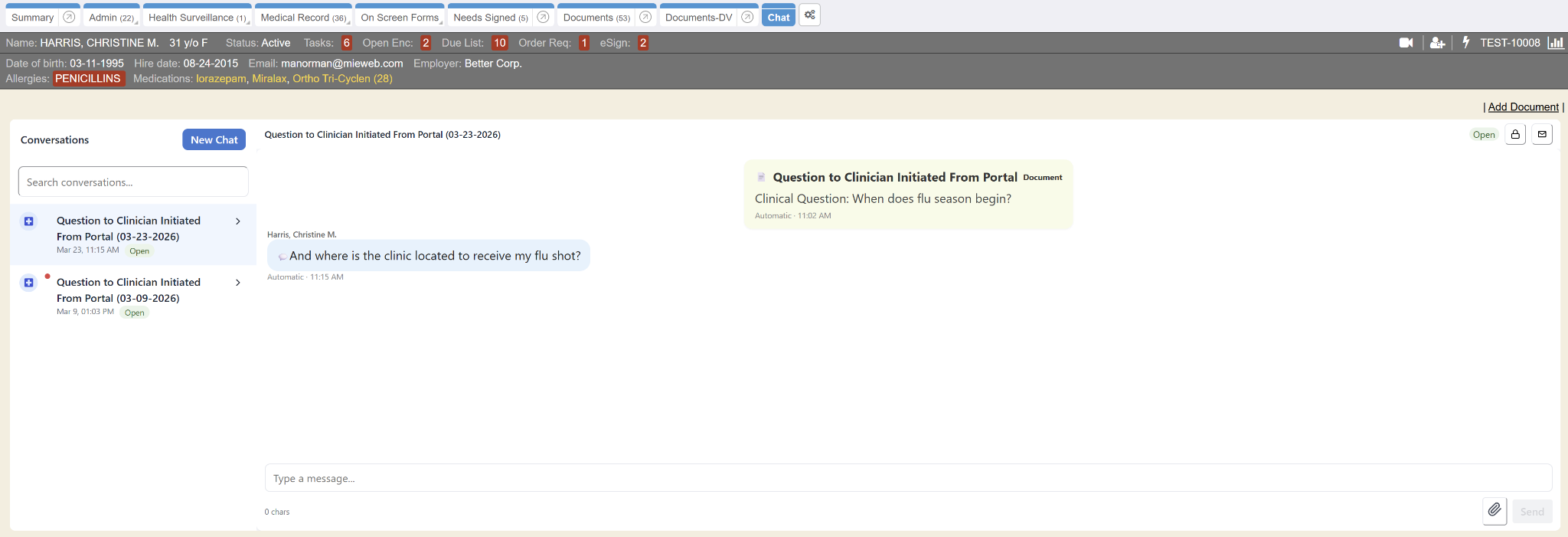
Chat Tab
As the clinician within Enterprise Health, you will see the Chat tab within the Patient Chart. The unread chats will have a red dot next to them on the list of chats on the left-hand side. Click on the chat you wish to respond to from the list, and the full conversation will display. Type the response to the question and click on the Send button when complete. The Enter key will also send the message. An image can also be attached to the chat using the Paperclip icon.
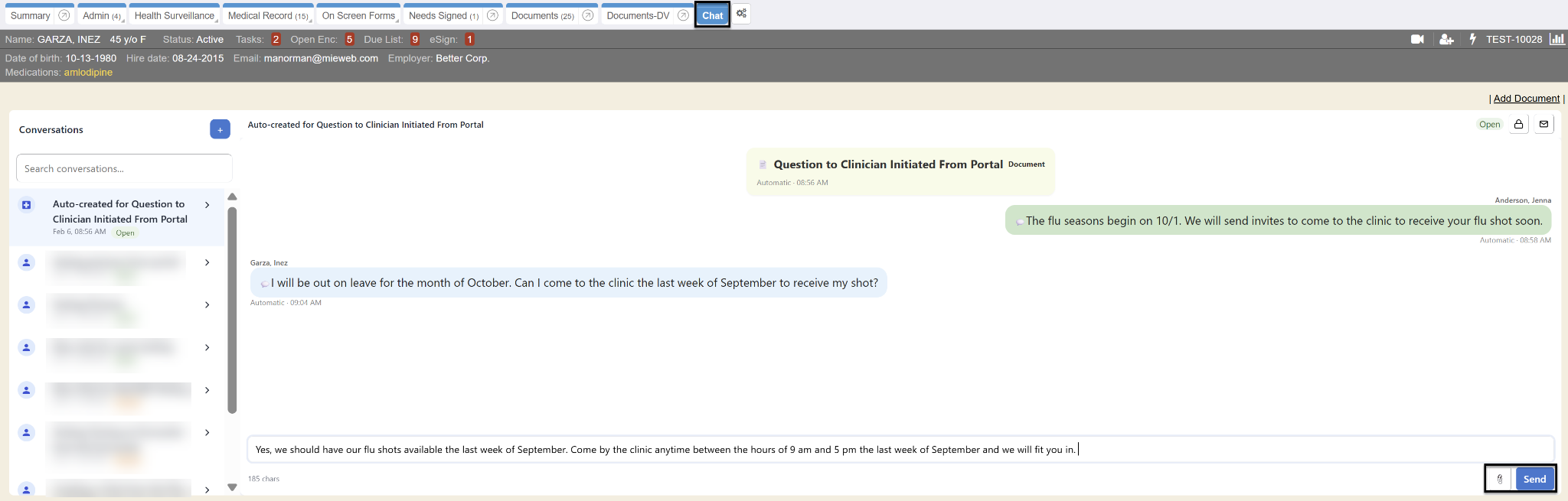
Sending a new chat message can be done within the Chat tab as well. Click on the Plus icon to create the chat. Add a Title to the chat and click the Create button.
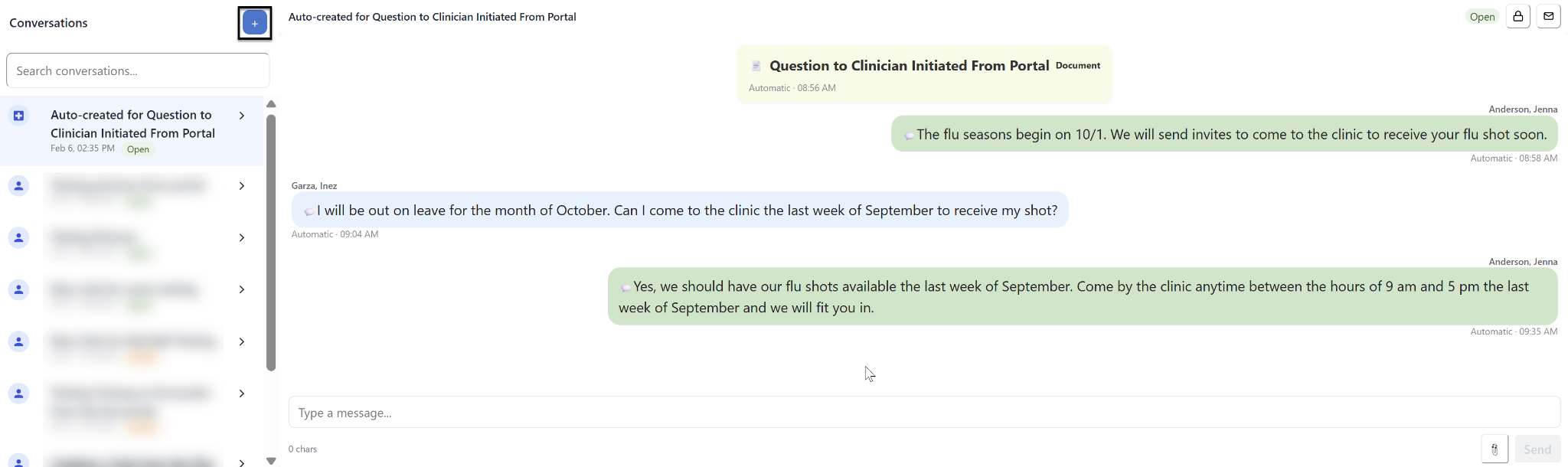
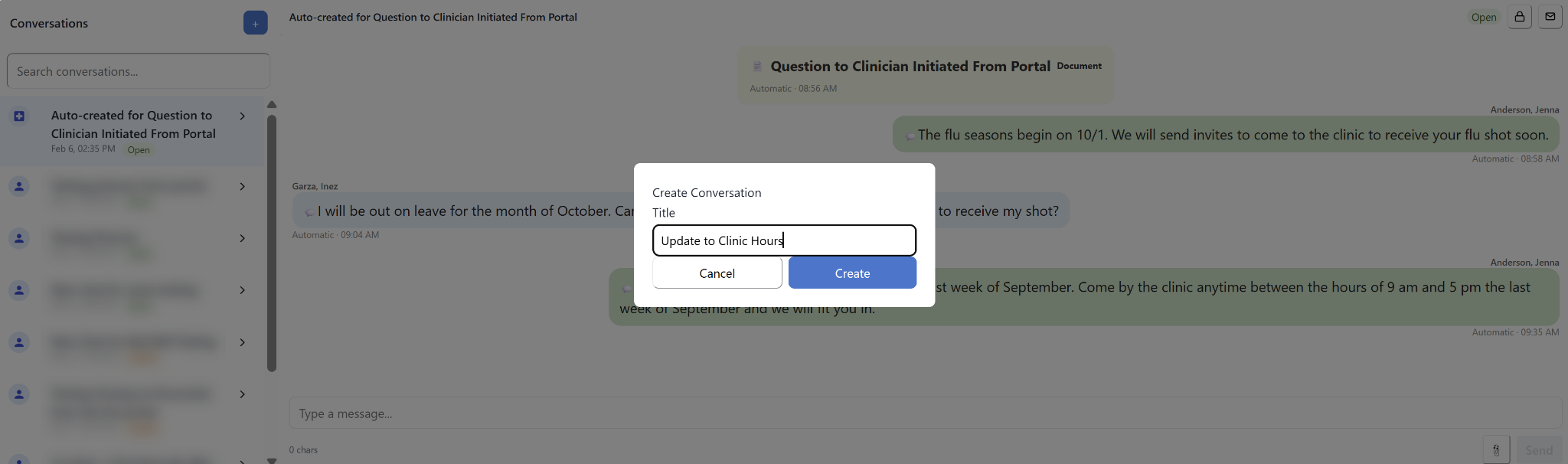
Add the message and click the Send button. The Enter key will also send the message. The patient will be notified that a chat has been sent and will be able to respond via the portal. Once the conversation has been completed, you can close the chat by clicking on the lock icon. You cannot send additional messages when a conversation is closed. You can reopen a conversation by clicking on the lock icon. As long as the conversation is open, you can add additional messages. The patient can also close the conversation. You can see whether a conversation is open or closed in the top-right corner next to the lock. Messages can be marked as unread by clicking on the envelope icon. Closed messages move to the bottom of the list after the Open messages.
There is also Search functionality to help locate any previous conversations. The search bar is above the list of chats on the left-hand side. Begin typing the search criteria and the list of chats will shorten to only the chats that contain the words that were searched.
Chats and Encounters
Once the conversation is complete, you can click the Lock button to Close the chat. All Chats create an Encounter, so when the Lock button is clicked, it will Archive and Close the Encounter. If the Chat is Open, you can go to the Encounter and add orders or link additional documentation.
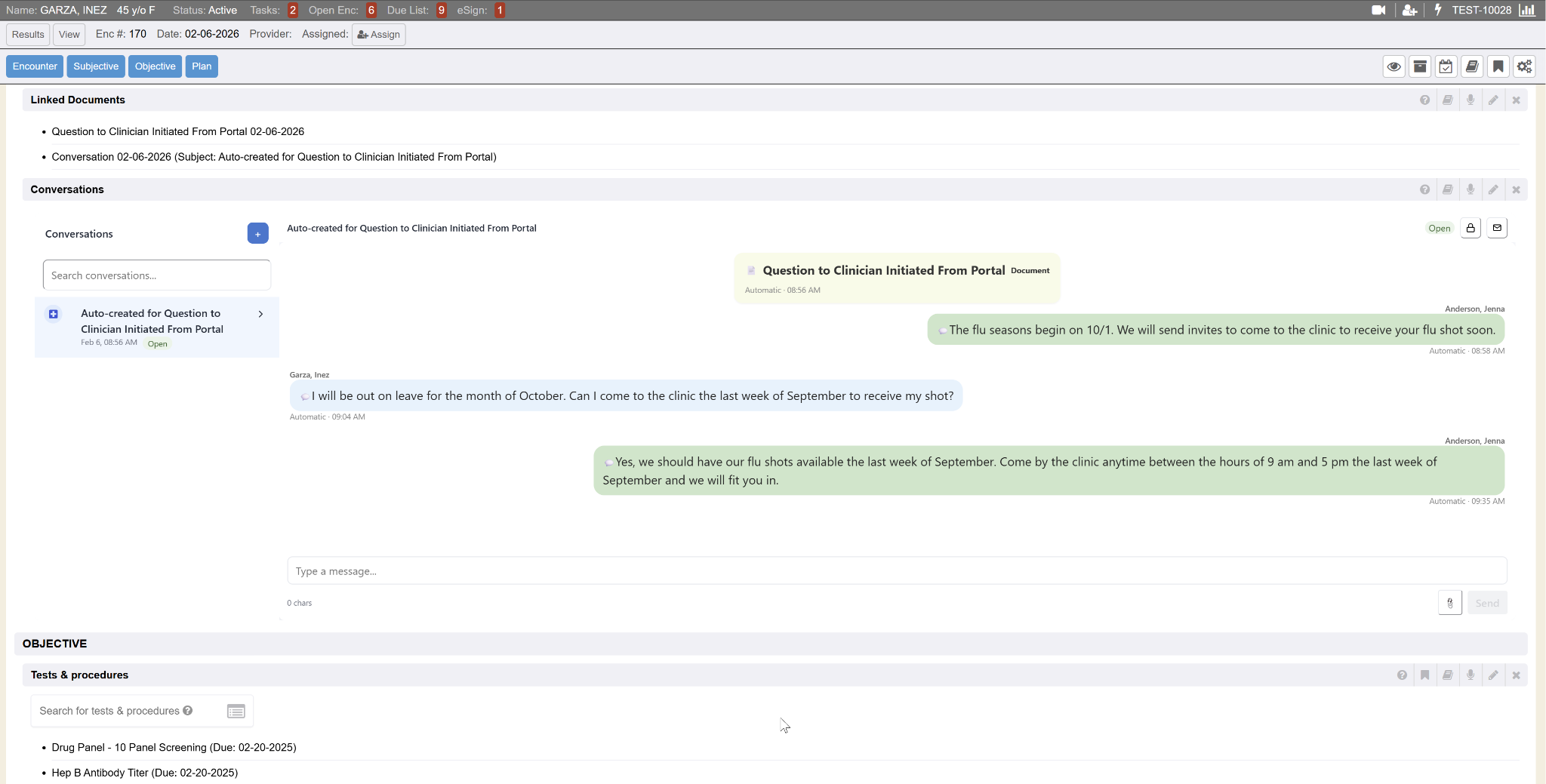
If you Archive and Close the Encounter, the Chat will be Closed as well. The status of the chat is in the top-right corner on the Chat tab.