Employer Portal Orders
The Orders tab can be used to view existing orders and/or to create new orders. This module is optional and may not display for all employers. The Portal Sponsor will assist in configuring necessary components with Enterprise Health system to utilize this feature.
Create a New Order
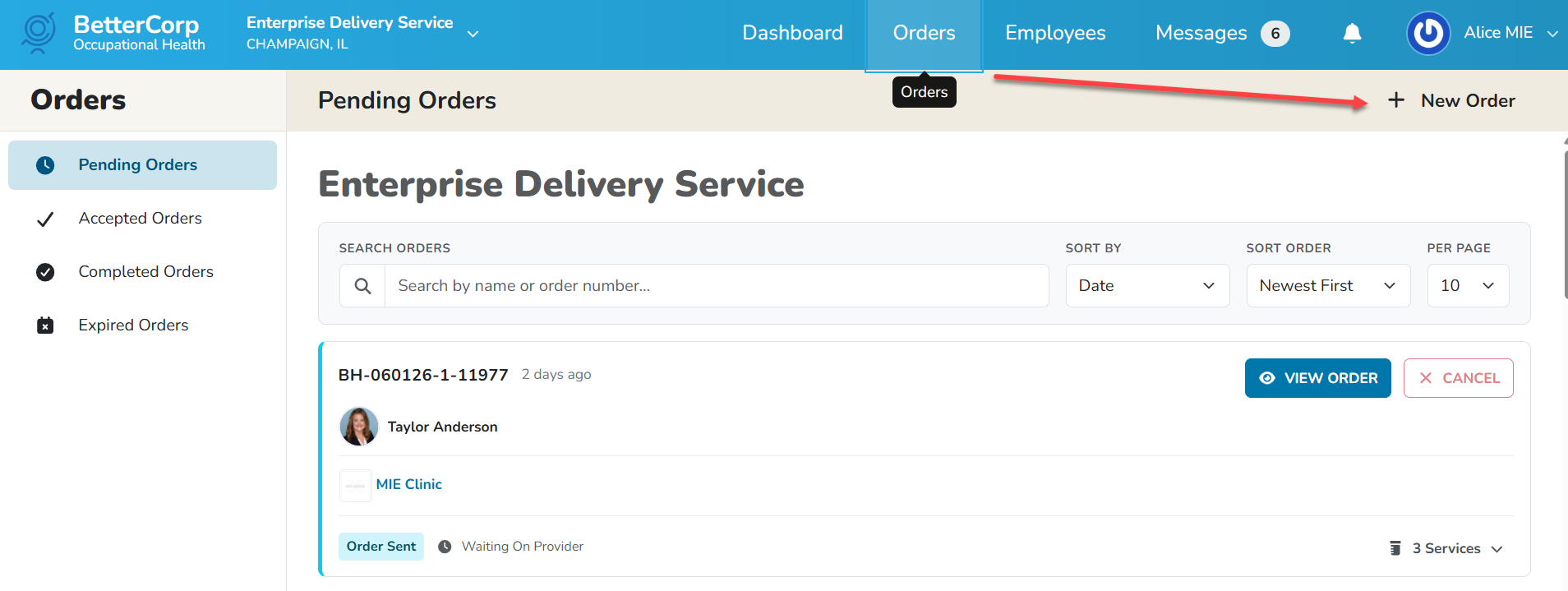
From the Orders tab click the +New Order button.
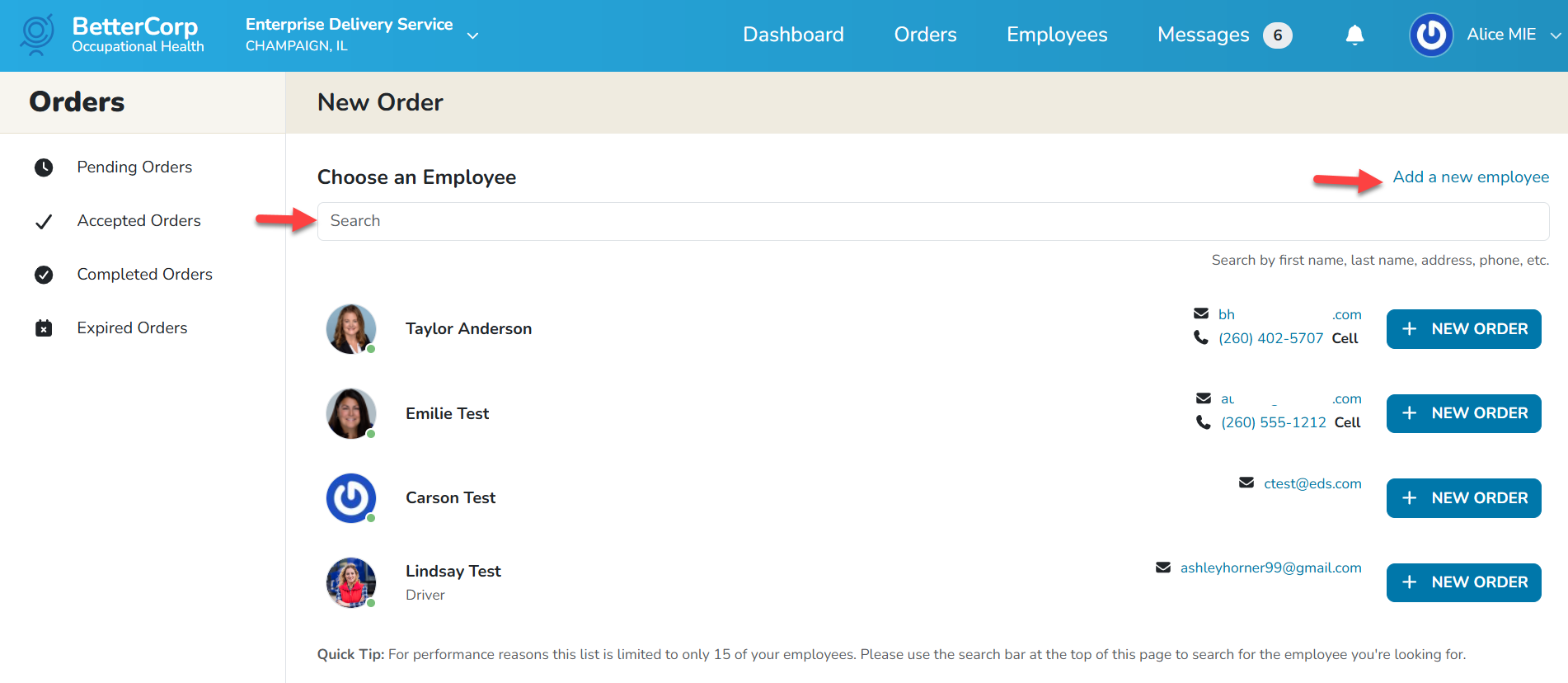
Search for the employee by name. If the employee name is not found in the search, then the employee will need to be registered before an order can be created.
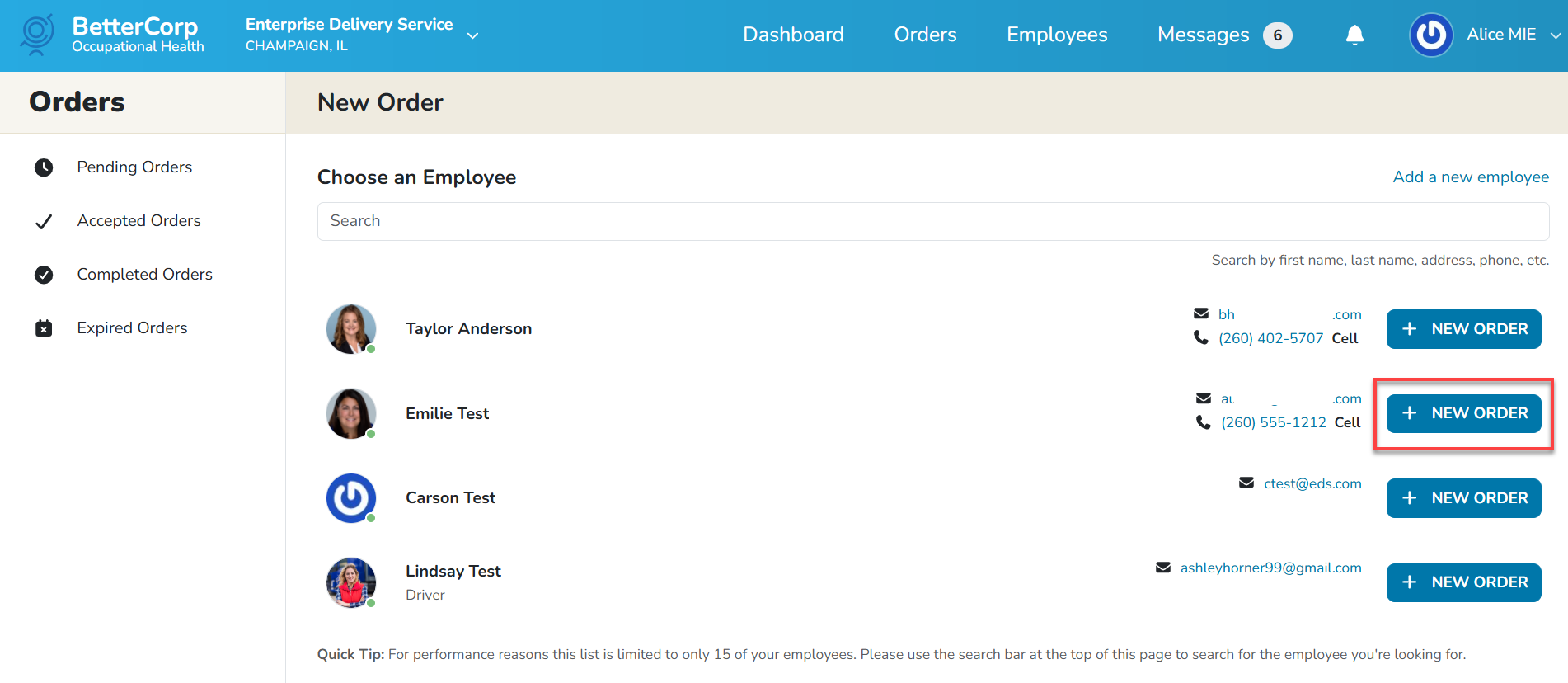
Click the +New Order button to create the order.
Click the +Add Bundle button to add the services included in the bundle. Bundles are the Deals that have been defined in Enterprise Health.
Note: Bundles may also include administrative forms required for services to be performed.
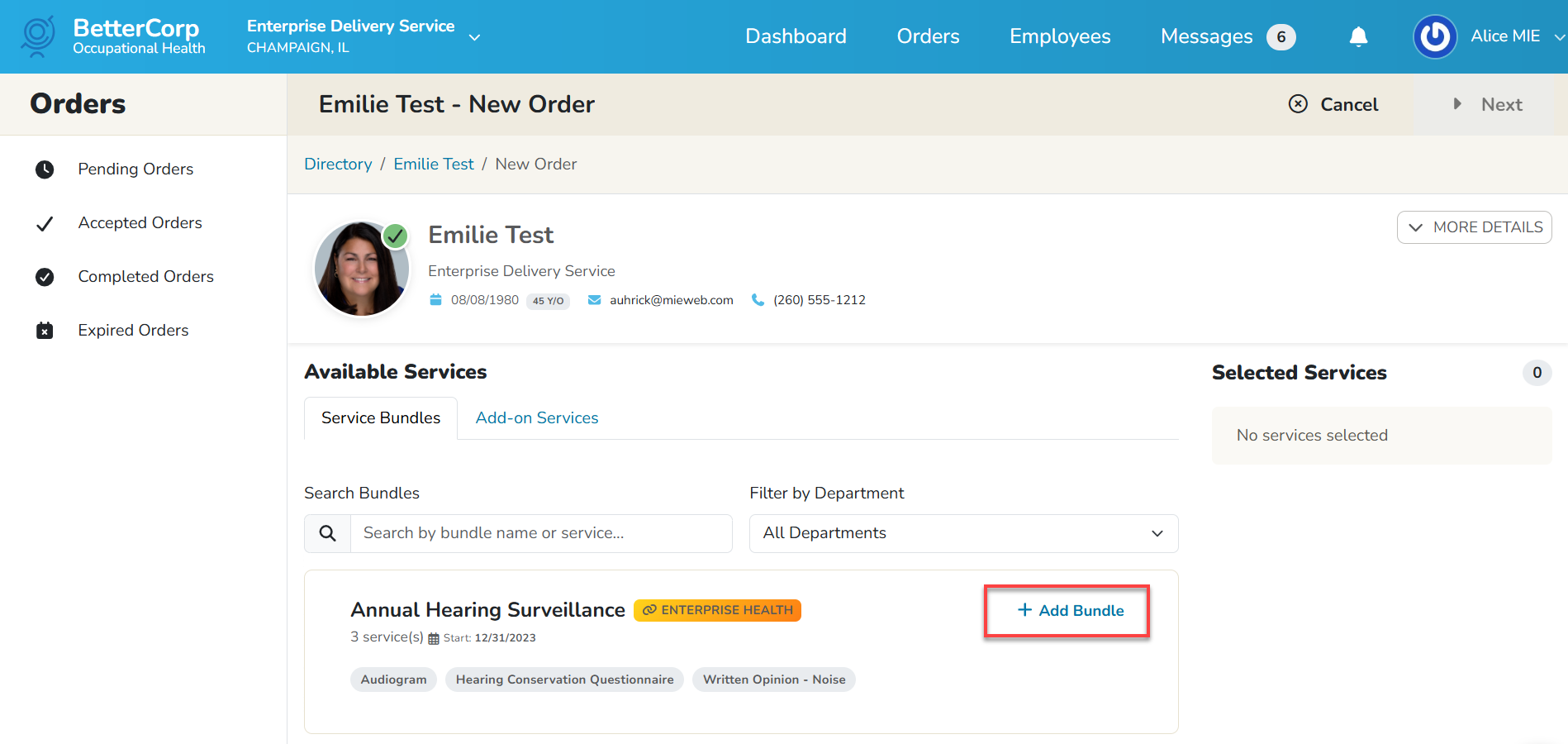
Added bundles will display in the Selected Services list on the right hand side of the screen. If the wrong bundle was selected, click the X Remove option on the bundle to delete the selected services. If the orders are correct and complete, click the Next button to proceed.
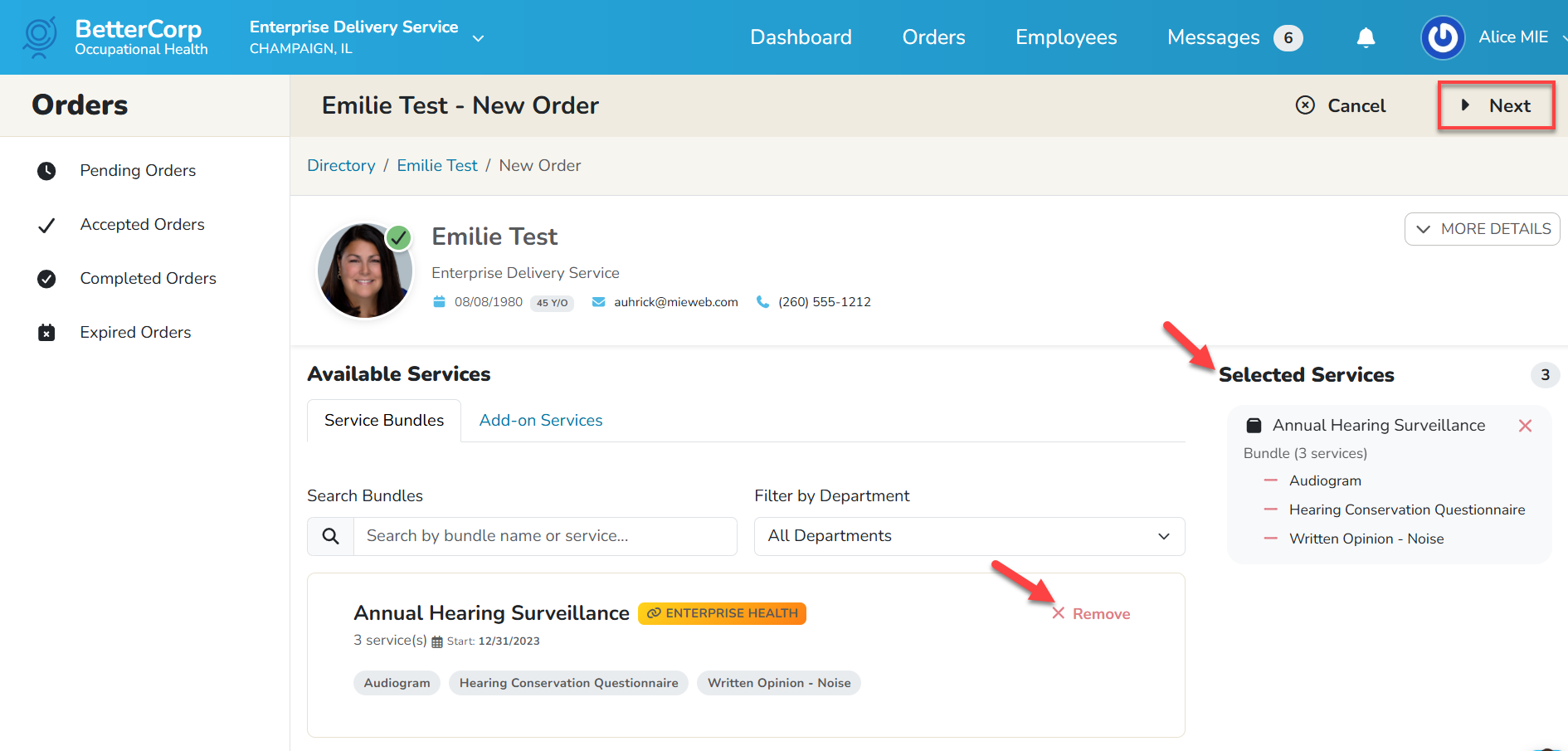 BlueHive will display a list of providers within a 50 mile radius of the employee’s zip code. Employers should look for service providers that can perform all services, but can select multiple providers to complete services if necessary. The employer may search for a different clinic by changing the zipcode search or by typing in the cite/state of the desired location for the appointment. Click the Search button to refresh the available providers list. Once the provider has been identified, click the Select All option (for providers who can perform all services) to select the provider. If a provider is selected outside of the user adding the order, a message will display that the provider is in a different timezone. The message will indicate the time and timezone that has been requested. Click the Send Order button to submit the order request.
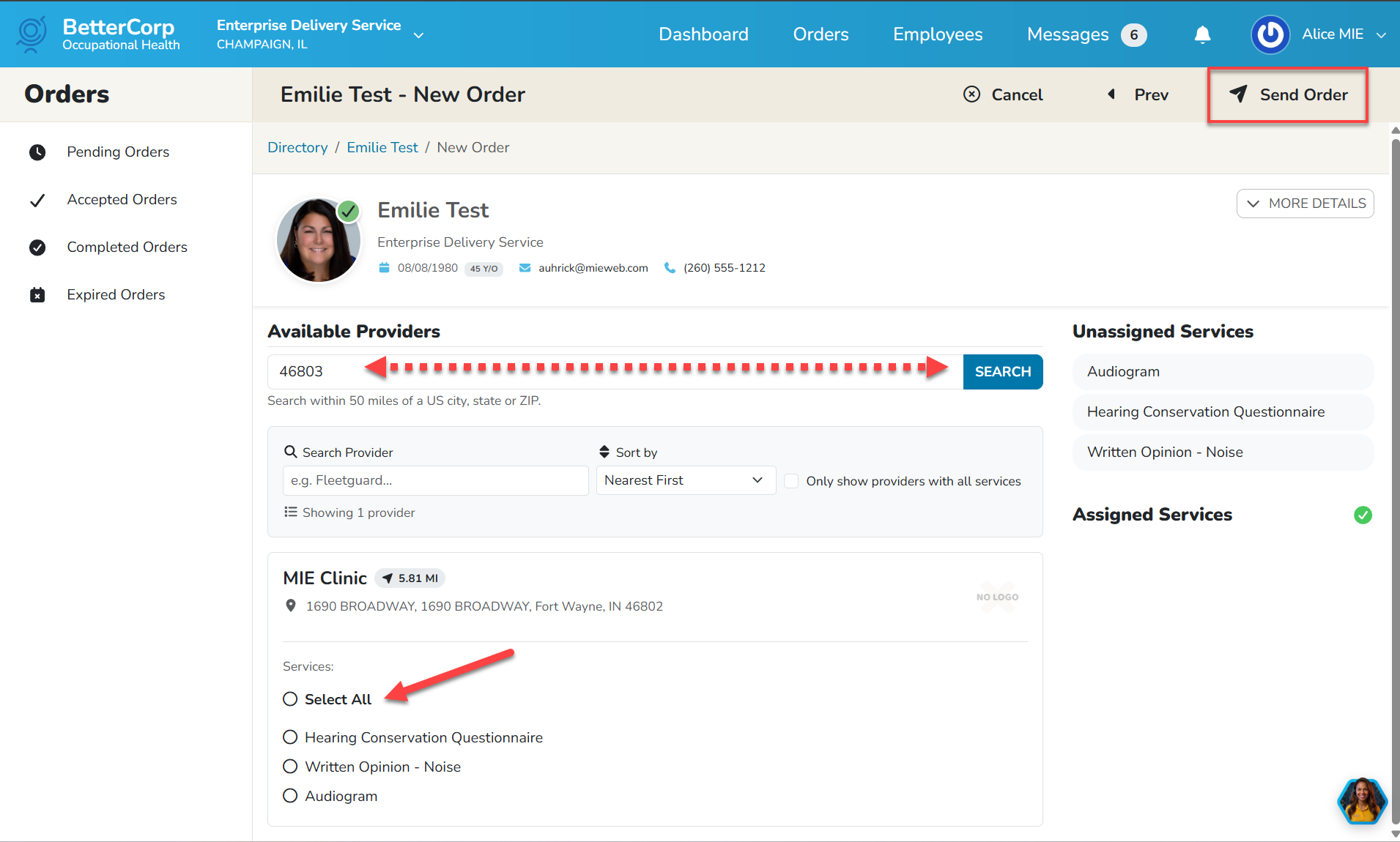
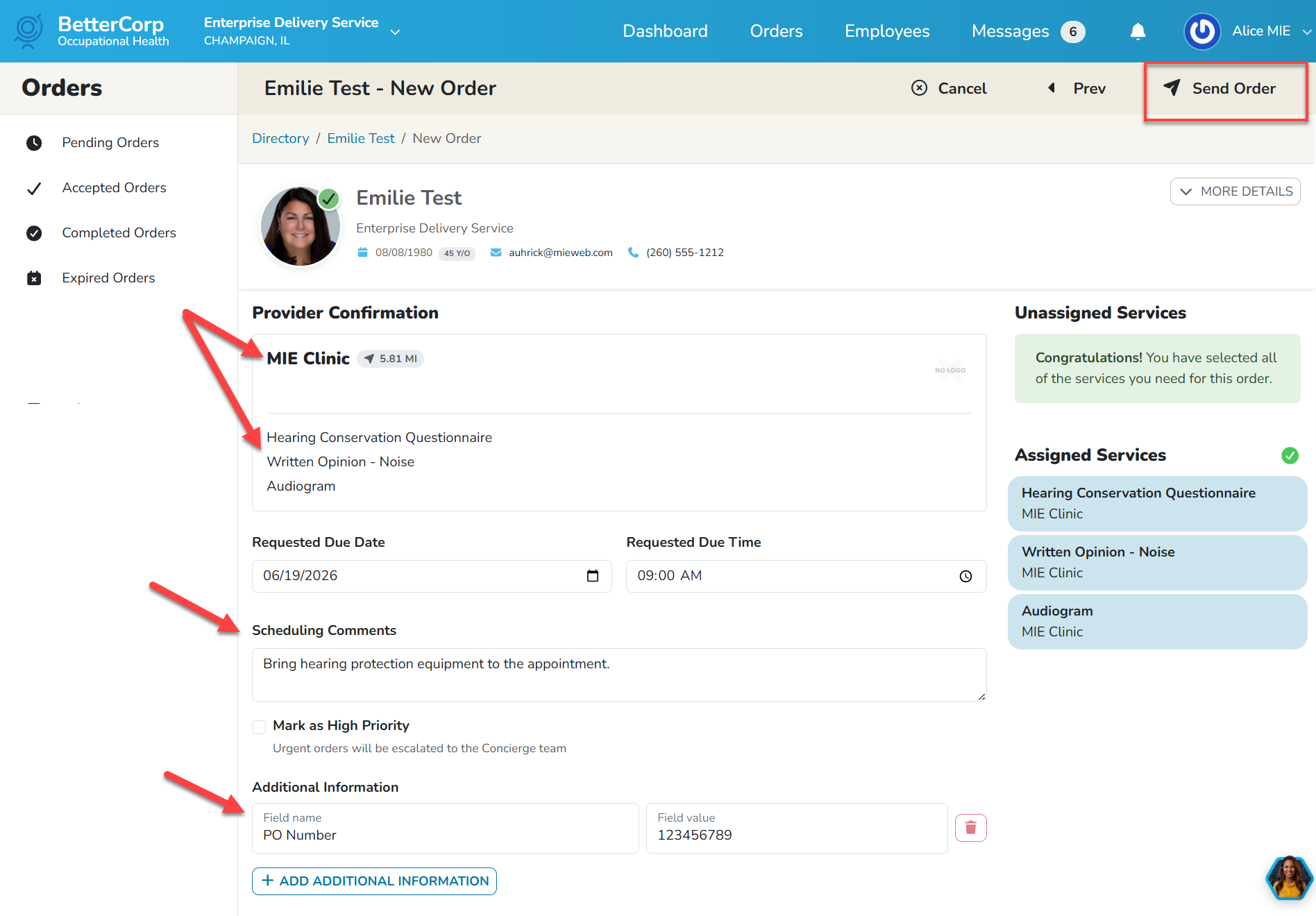
Once the provider has been selected, the page will refresh. A summary of the services and provider will be displayed. The system will default the Requested Due Date for 3 days from the current date (unless modified by the Portal Sponsor). Employers may enter a date and time in which they would like the employee to go to the clinic for their appointment. Scheduling Comments may also be added or left blank if not applicable. Please note: these comments will display on the appointment confirmation email that is sent to the employee. Employers may also use the Add Additional Informational button to add additional information configured by the Portal Sponsor. Please enter this information if required by the employer for billing purposes. When the information has been entered, click the Send Order button to send the orders to the Portal Sponsor.
Please note, if the provider selected is in a different time zone than the user creating the appointment, then the user will see a notification that the appointment was scheduled in a different timezone and highlight the correct time and timezone.

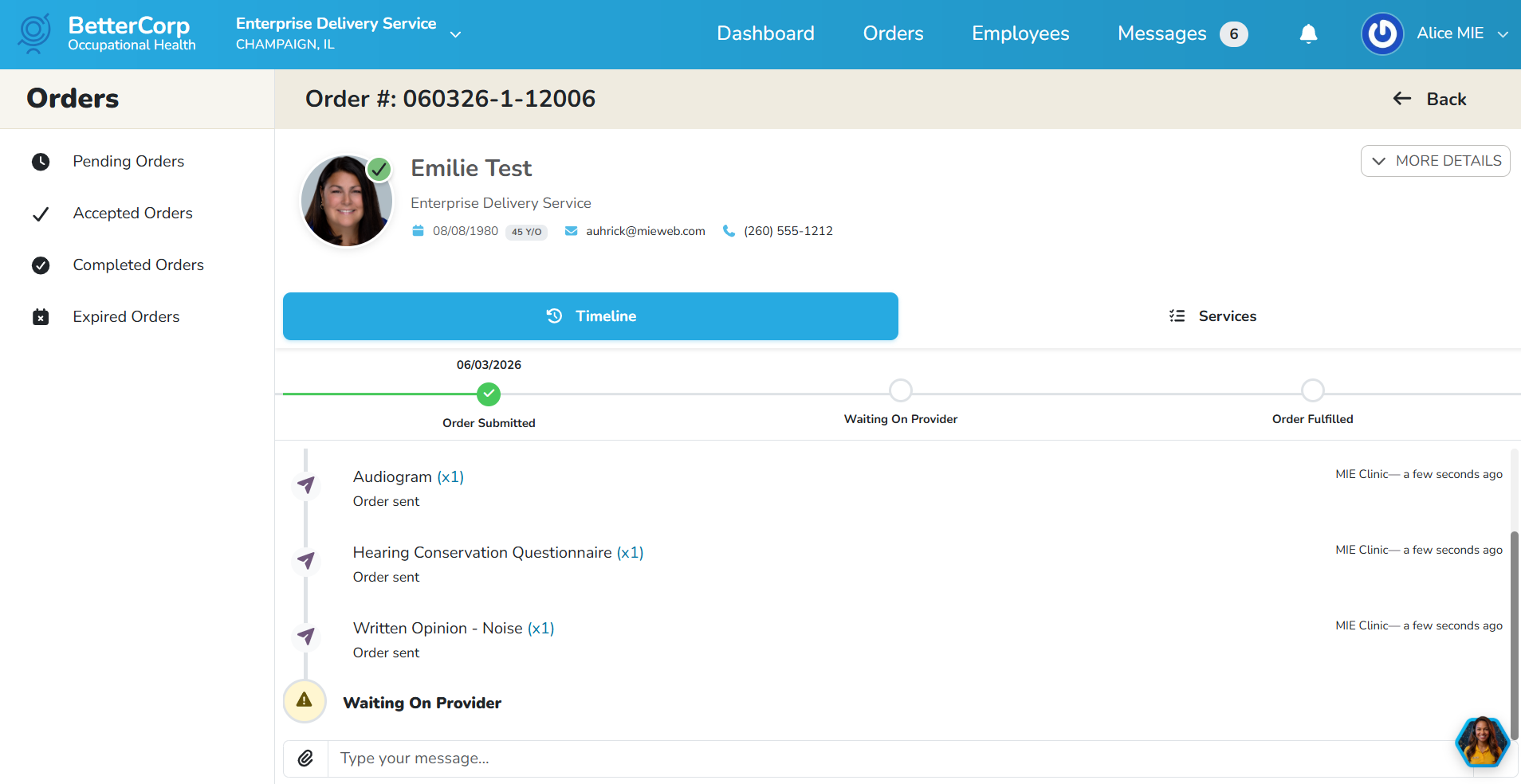
Users will see a pop up message in the lower right hand corner of the screen if the orders have been successfully sent. Users will then be redirected to the Orders Status timeline.
Please note: the option to type a message to send to the provider has been disabled. A future release of BlueHive will hide this option and can be ignored at this time.
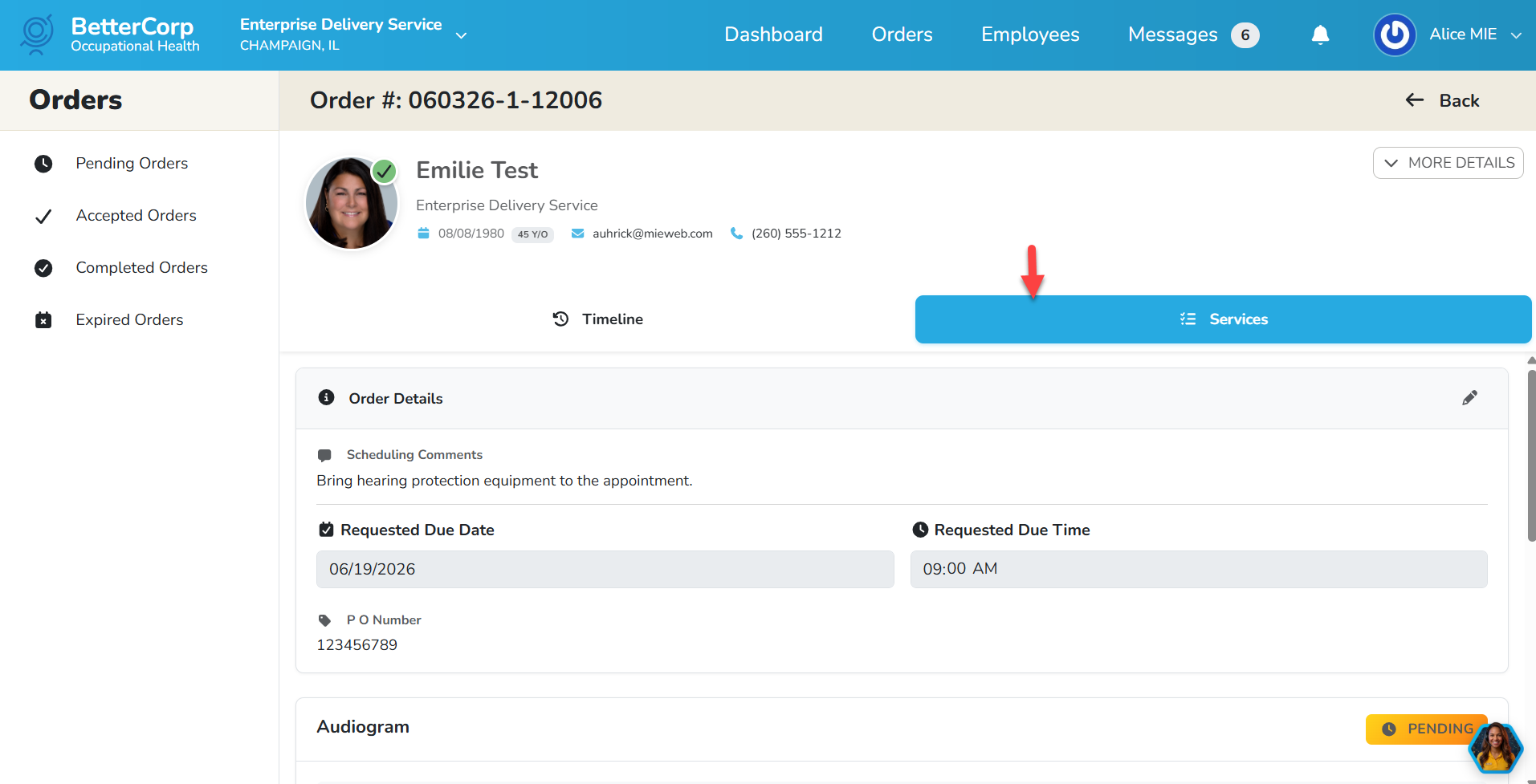
Clicking on the Services tab will display details entered on the order.
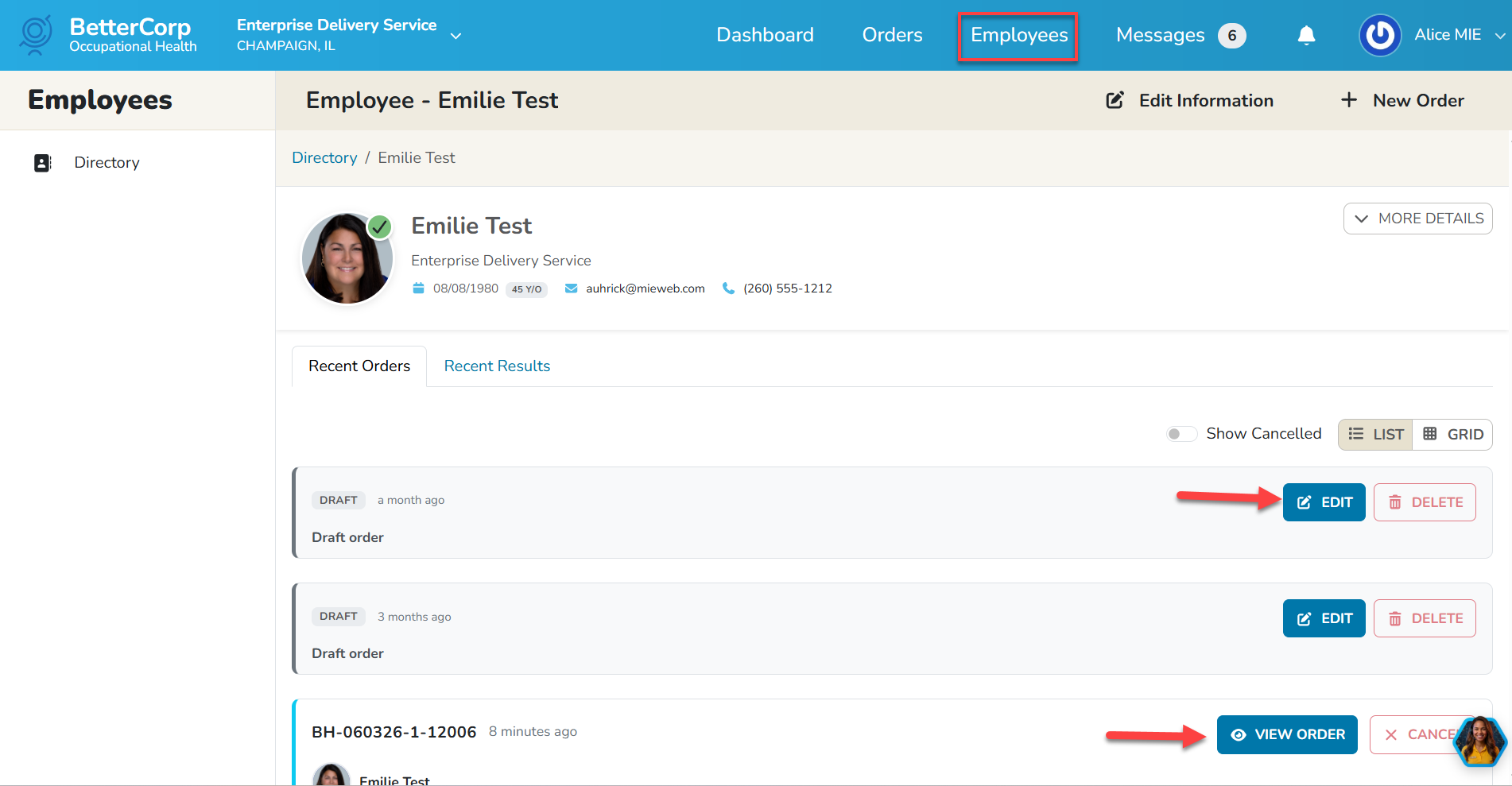
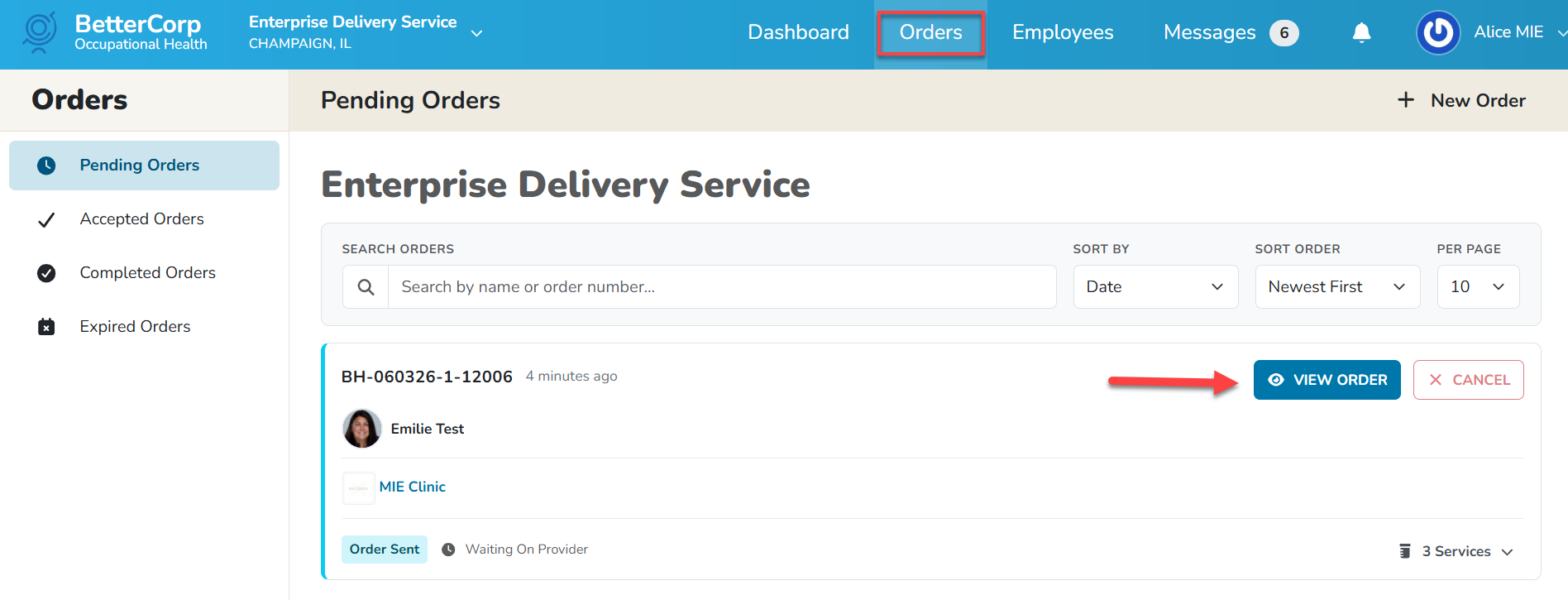
Employers may return to view the order status by navigating to the Orders tab, then clicking the View Order option for the desired employer/order.
Employers may also navigate to the Employee tab, search for the employee by name and view orders
Orders/authorizations that were not completed and successfully sent to Portal Sponsor will display as a Draft Order. Click Edit to continue with order or click the Trash Can icon to delete the order.