First Time Login
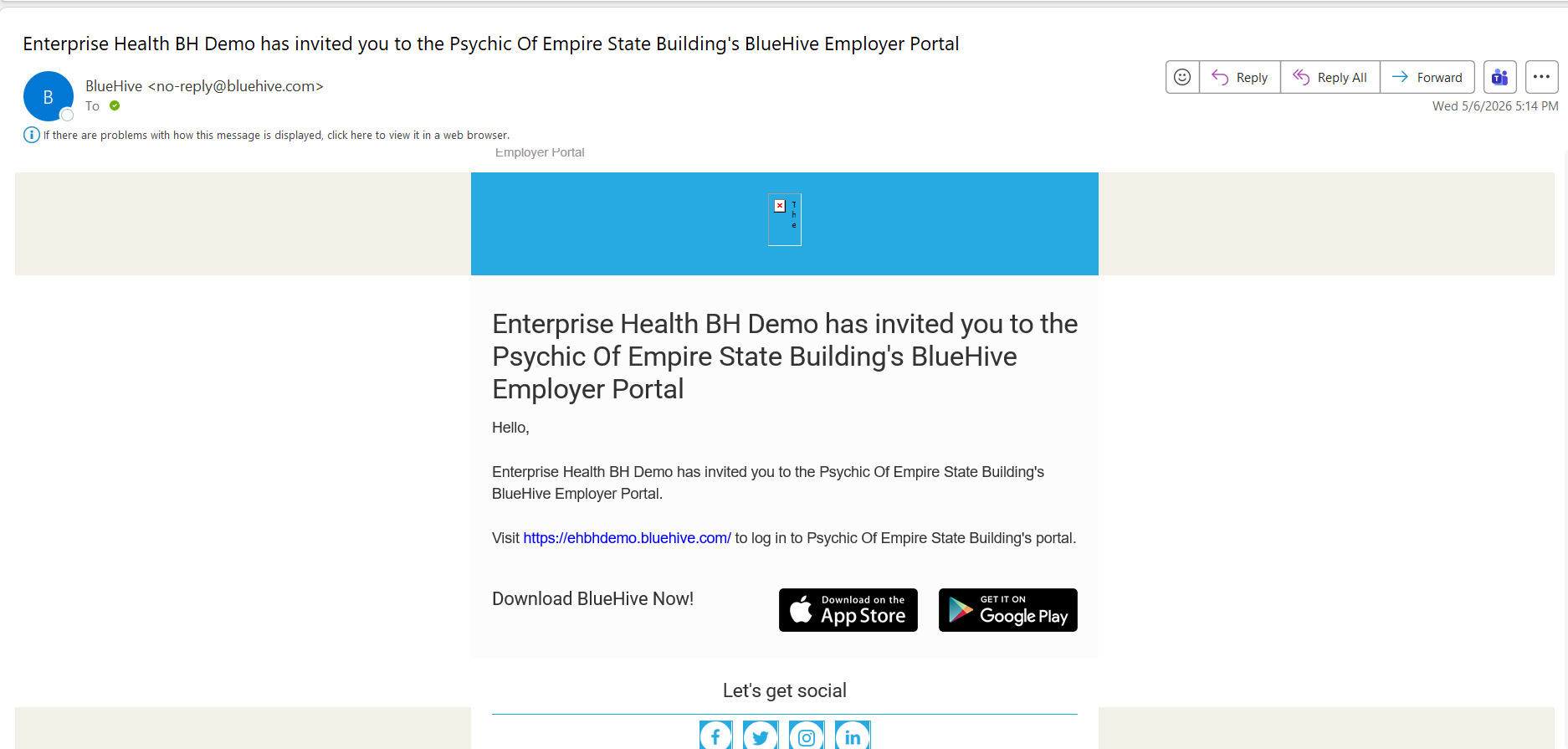
The Enterprise Health Employer Portal-powered by BlueHive, supports Single Sign-on (SSO) or Login with Email options for an easy login experience. System administrators must first configure SSO for employers and/or set up users to log in via their email. Once configured, employer portal users will receive an email inviting users to log into the portal.
Hint: Save the link to the portal as a favorite to your browser for quick access in the future!
First Time and Returning User Login
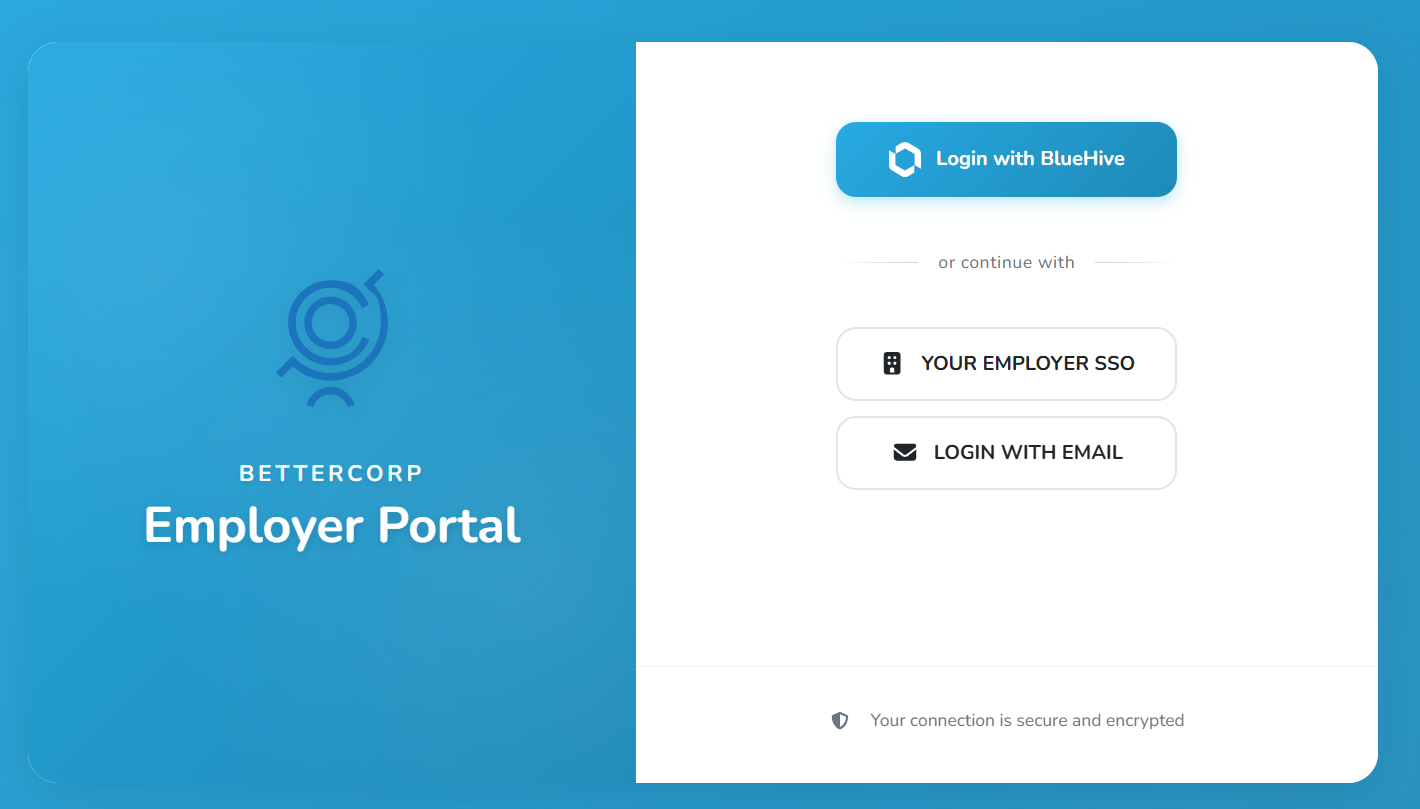
If SSO has been configured for your employer, select the Your Employer SSO button*,* otherwise select the Login with Email option. If SSO has been configured for the employer, the user will automatically log into the portal.
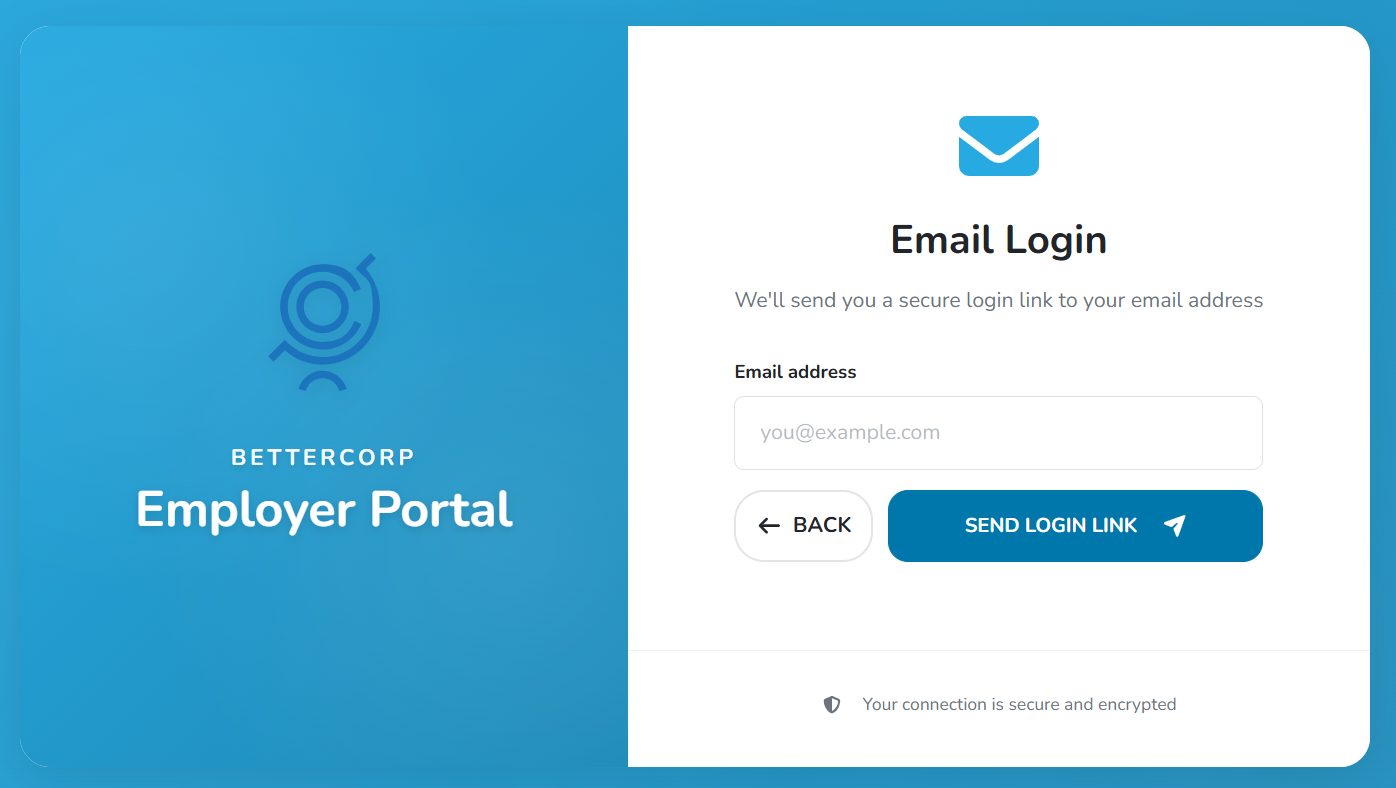
When logging in with email, enter your email address and click the Send Login Link button to receive a verification email. Some browsers may support prepopulating the email address for you.
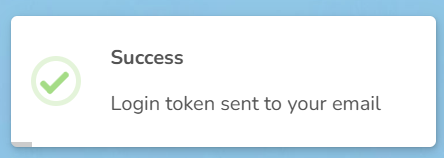
Once the email has been sent, a confirmation message will display in the lower right hand corner of the screen.
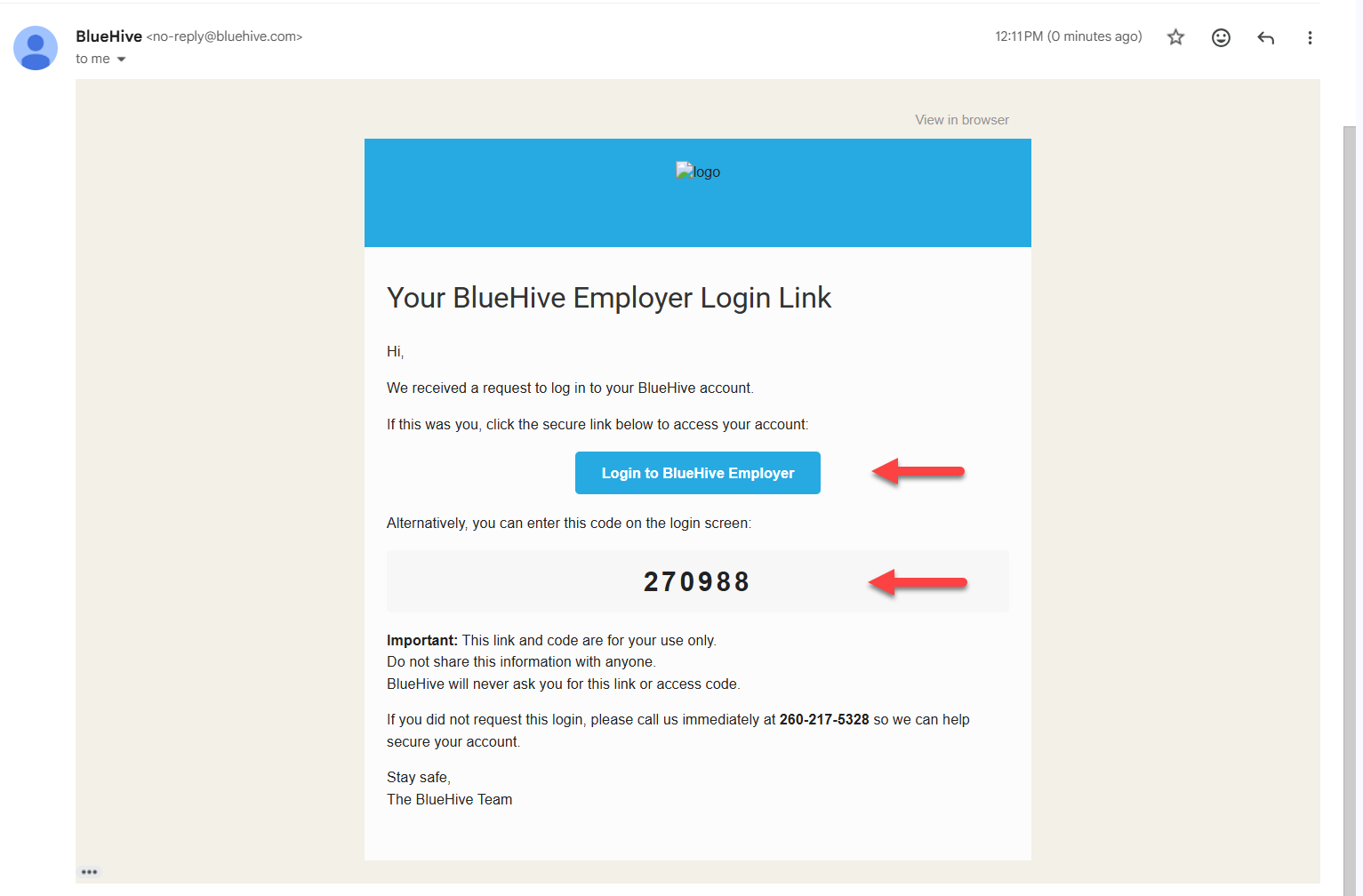
The email will contain a direct link to the Employer portal, as well as a one time passcode. Users may click the Login to BlueHive Employer link to be taken directly to the portal. Alternatively, users may return to the previous browser screen and enter the one time passcode to enter the portal. Either method is acceptable, however following the provided link, is the fastest way to enter the portal.
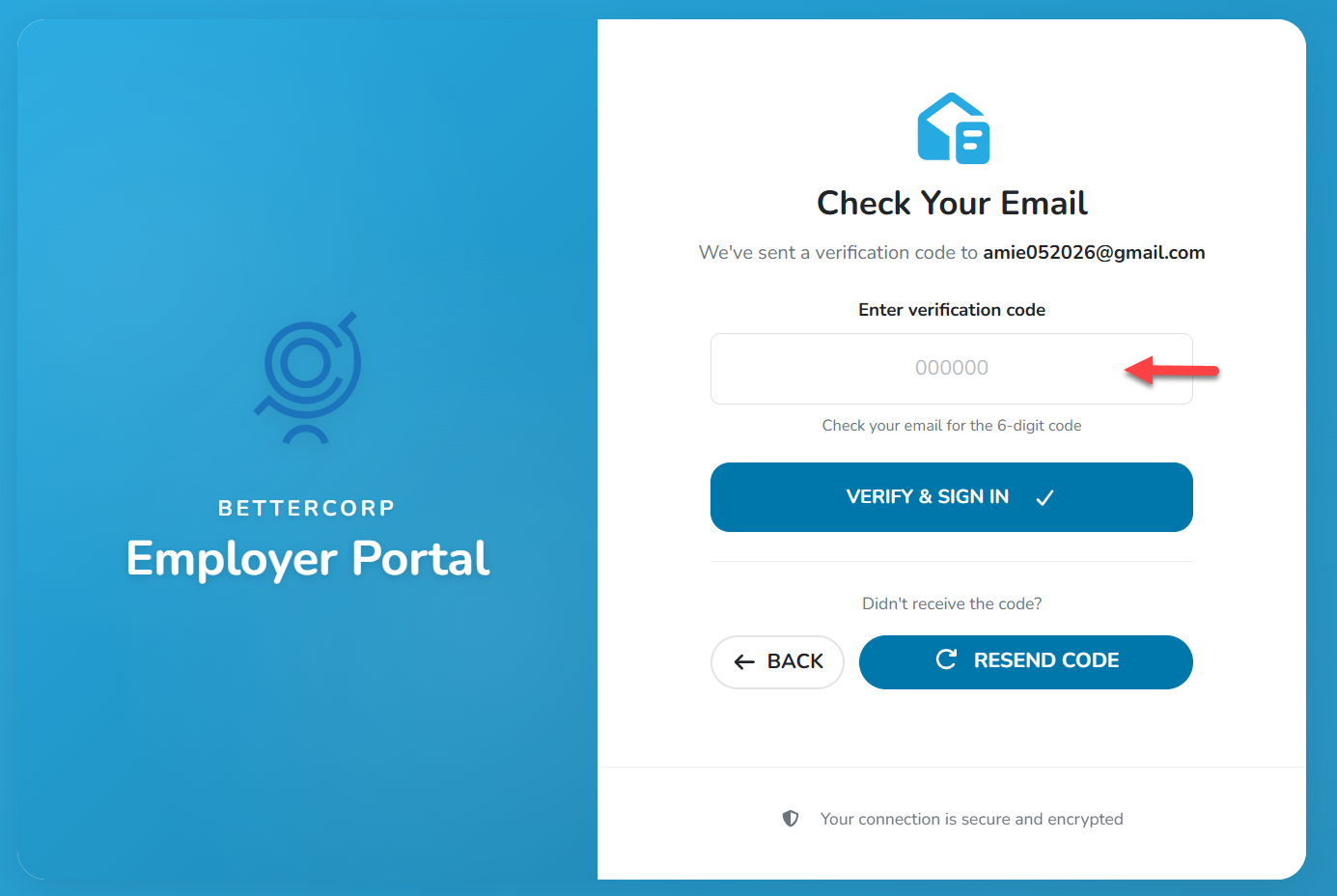
If you prefer to enter the one time code, return to the original browser screen and enter the code and click the Verify & Sign In button.
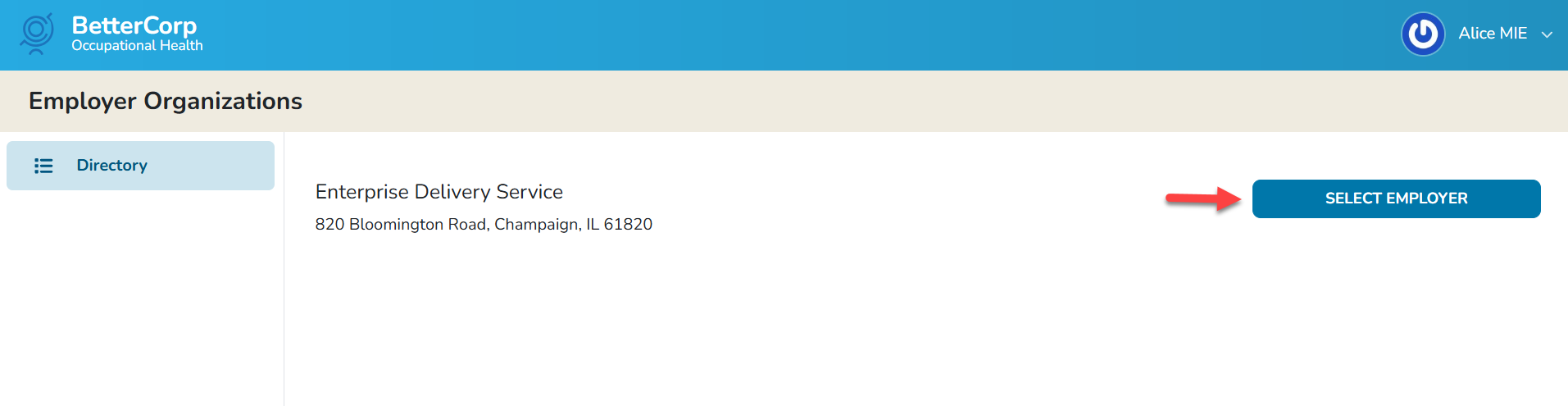
Once logged in, users will land on the Employer Organizations Directory. Users will see a list of all employer portals for which they have been given access to. Click the “Select Employer” button for the employer portal you wish to enter.
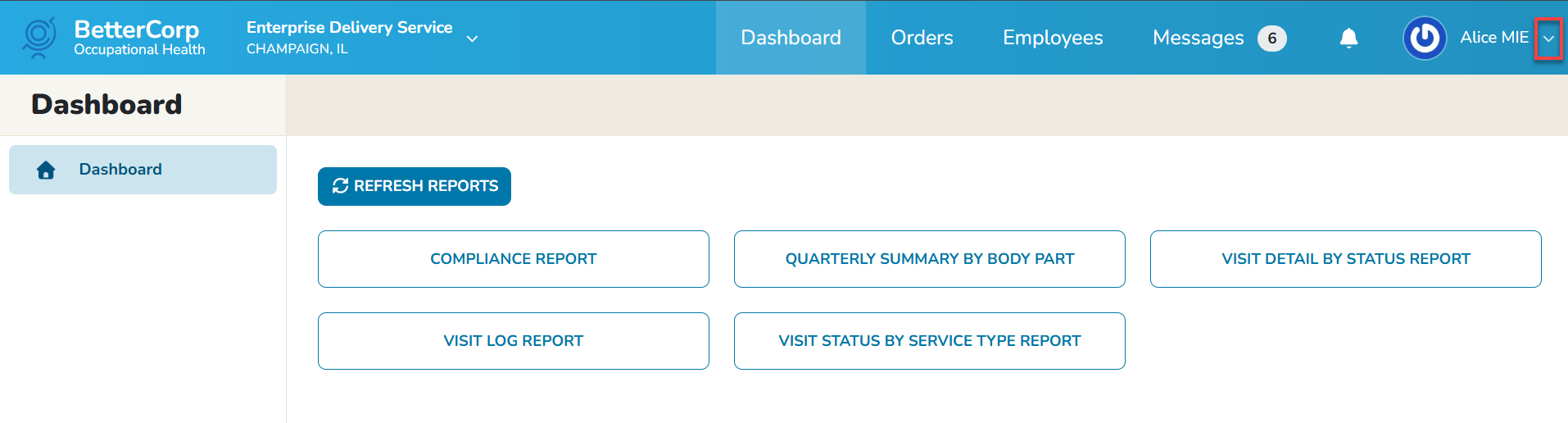
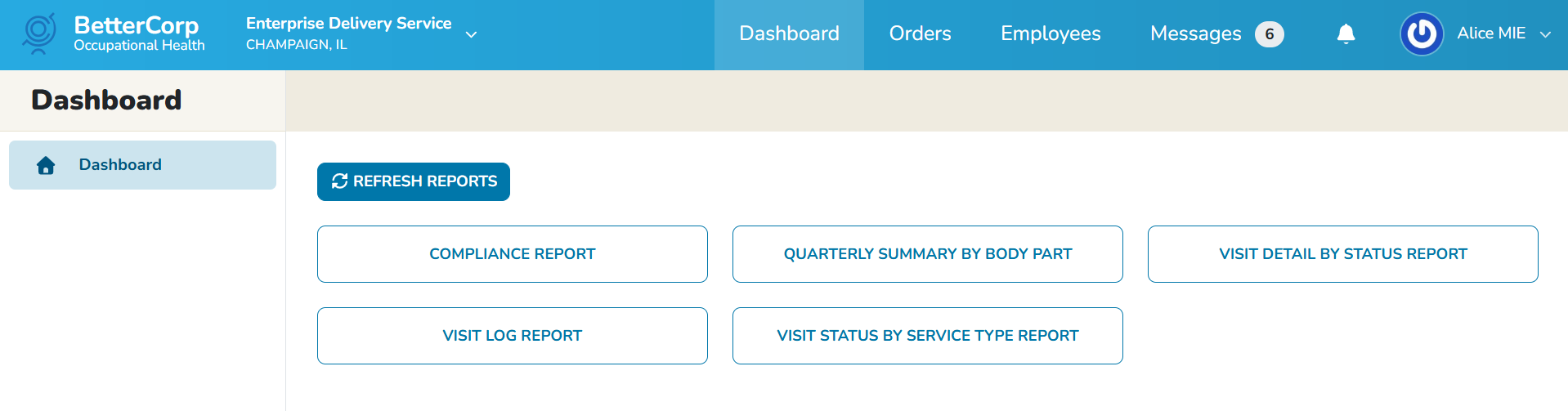
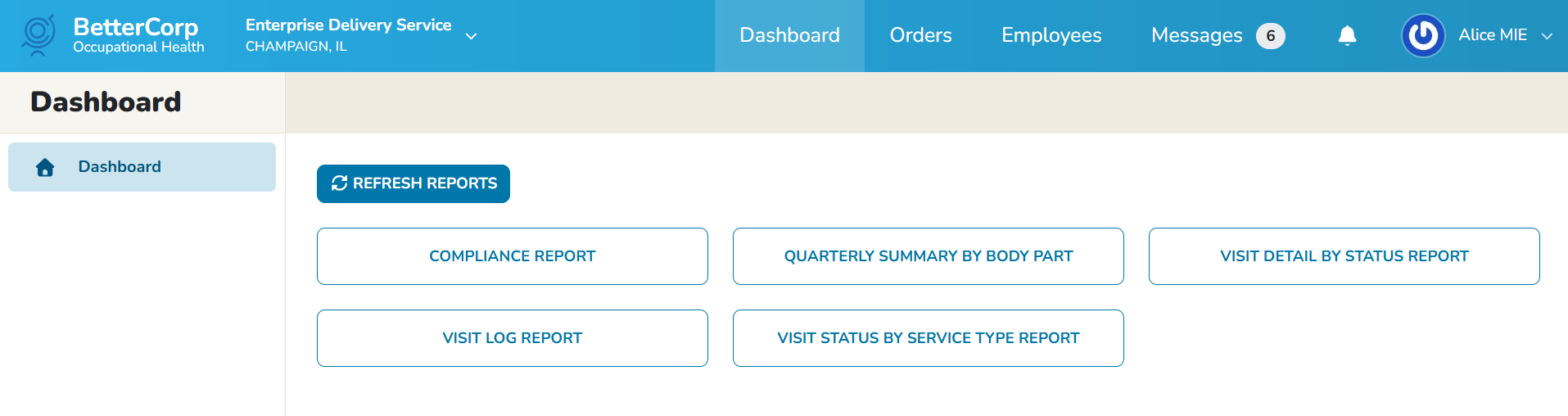
Once selected, the user will be directed to the Dashboard. The Dashboard contains a list of 5 Out of the Box reports.
Navigation
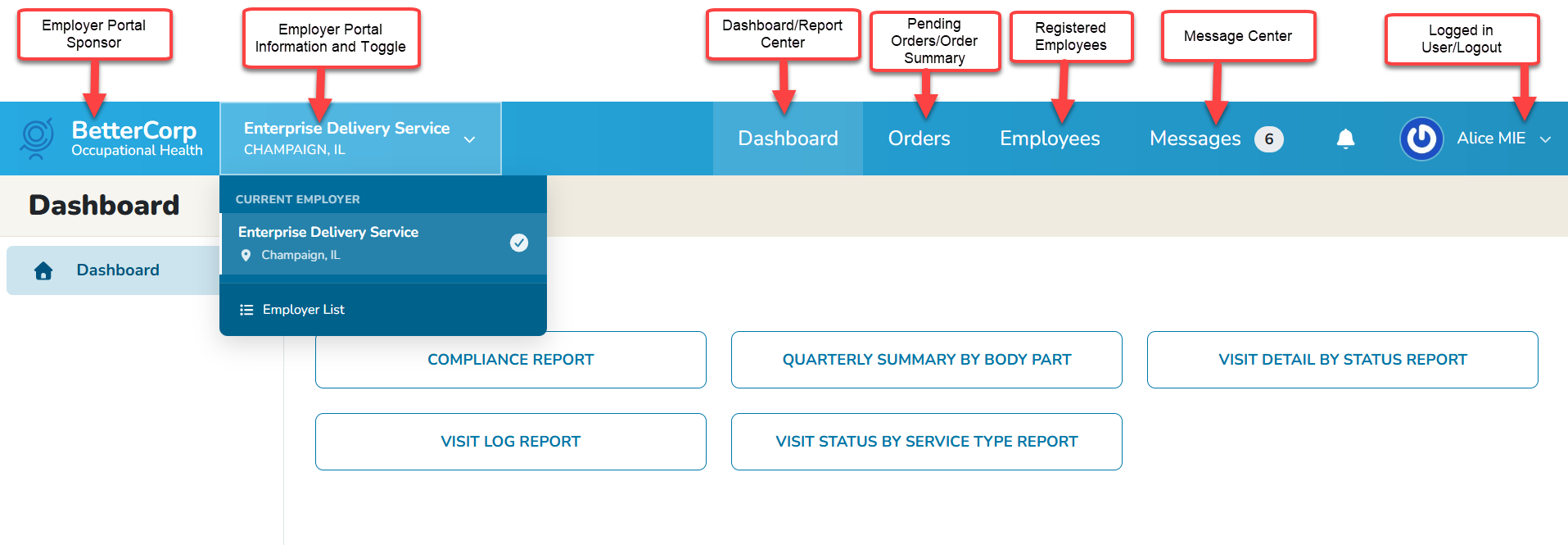
Employer Portal Sponsor
The Employer Portal Sponsor creates and maintains the Employer portal configuration, user access and portal options.
Employer Portal Information and Toggle
The current employer portal will display in the header. If users have access to more than one employer portal, each portal will display in the header drop down and users may toggle to other employer portals. In some rare cases, specified users may be given access to view and/or edit employer data.
Dashboard/Reports Center
The Dashboard Overview is currently programmed to display out of the box reports. Custom reports may also be created in Enterprise Health and shared on the employer portal.
Orders
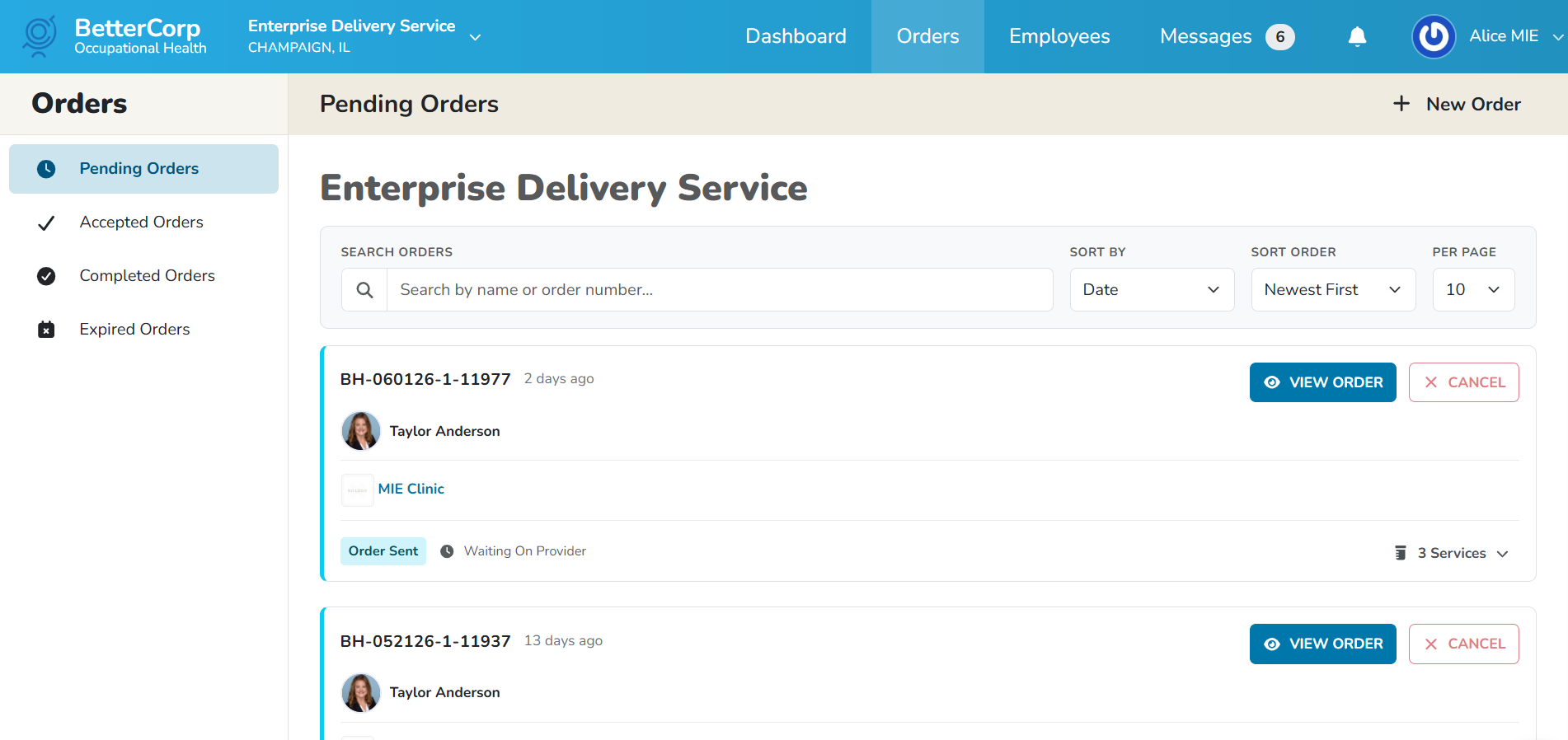
The Orders module is an optional module that will only display if the selected Employer portal has been configured to order testing or exams on behalf of registered employees.
Employees
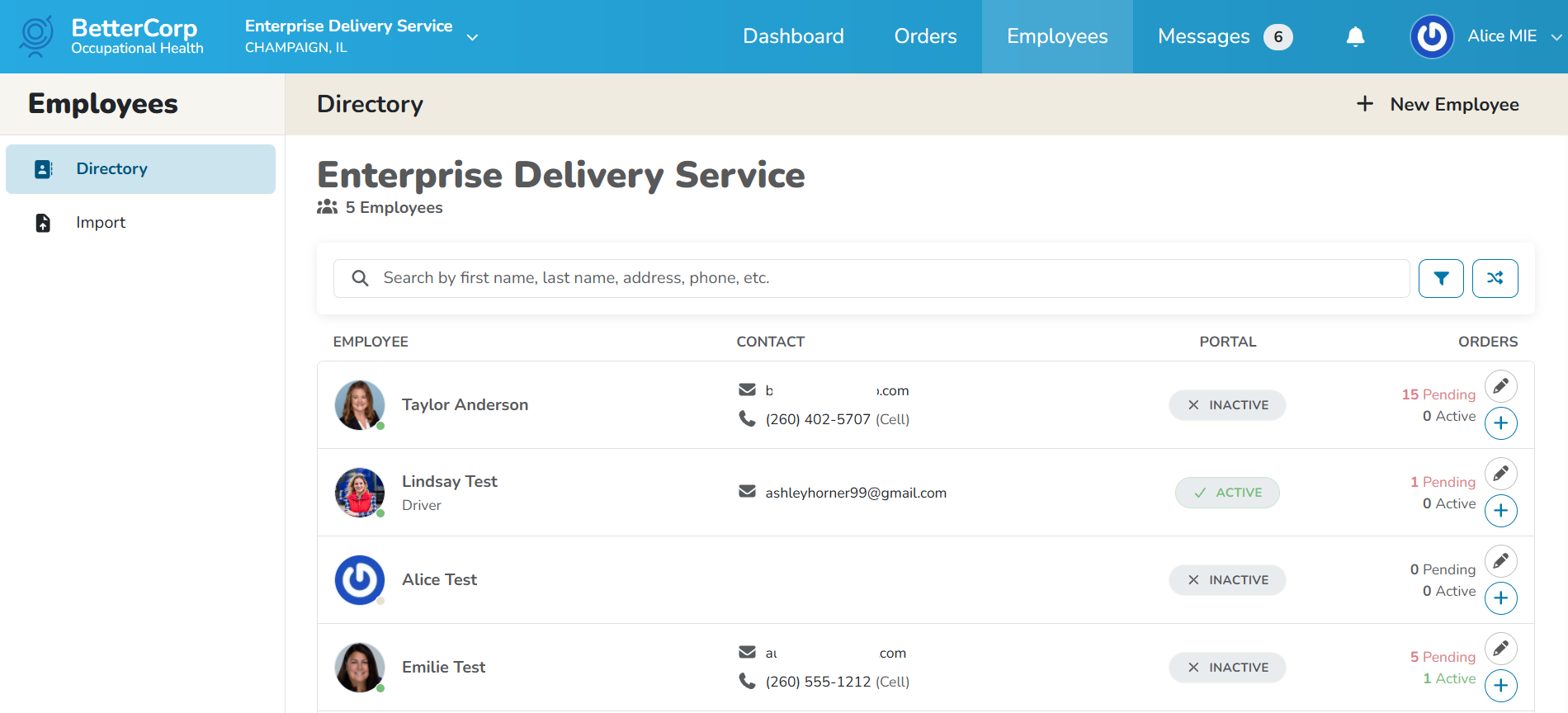
The Employees module displays a list of all registered employees in the Enterprise Health Employer Portal-powered by BlueHive. The employee list can either be populated by the employer portal manually importing a list of employees on behalf of the employer, by the employer using the self service HR import tool within the employer portal or by the employer manually registering the employee on the employer portal.
Messages
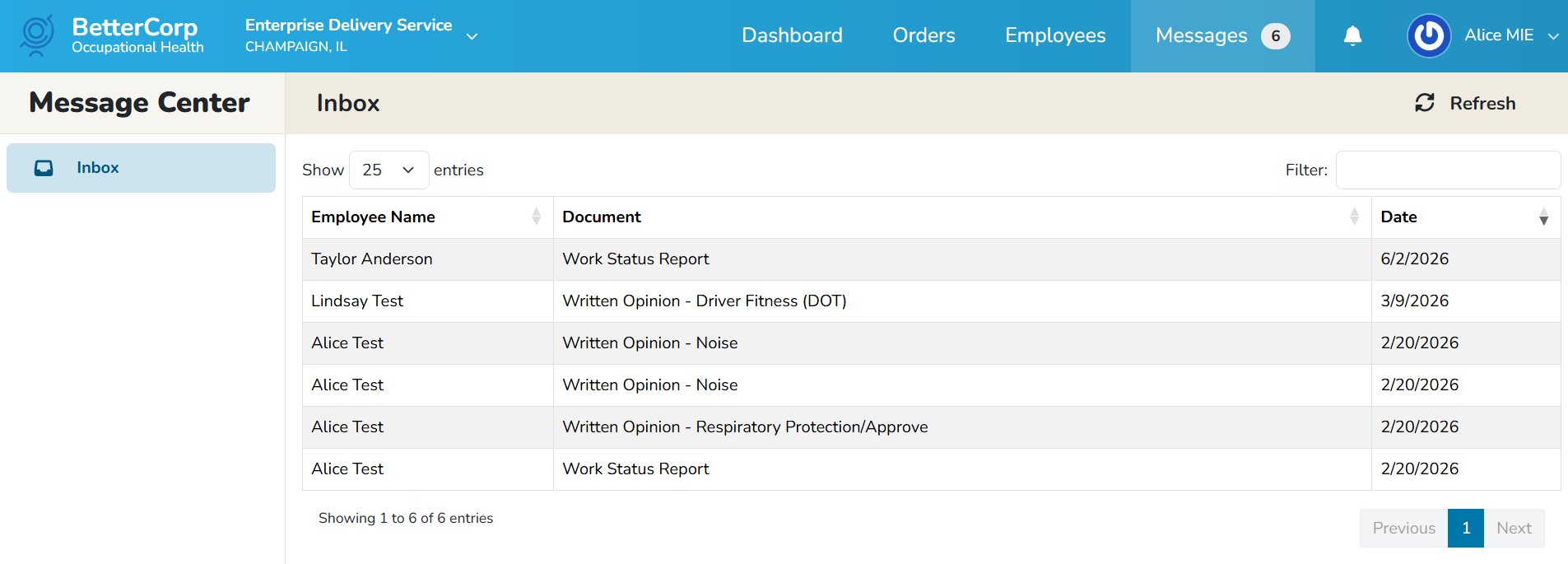
The Messages/Message Center inbox displays a list of employee documents that are shared with the employer. Dashboard/Reports Center
Logout
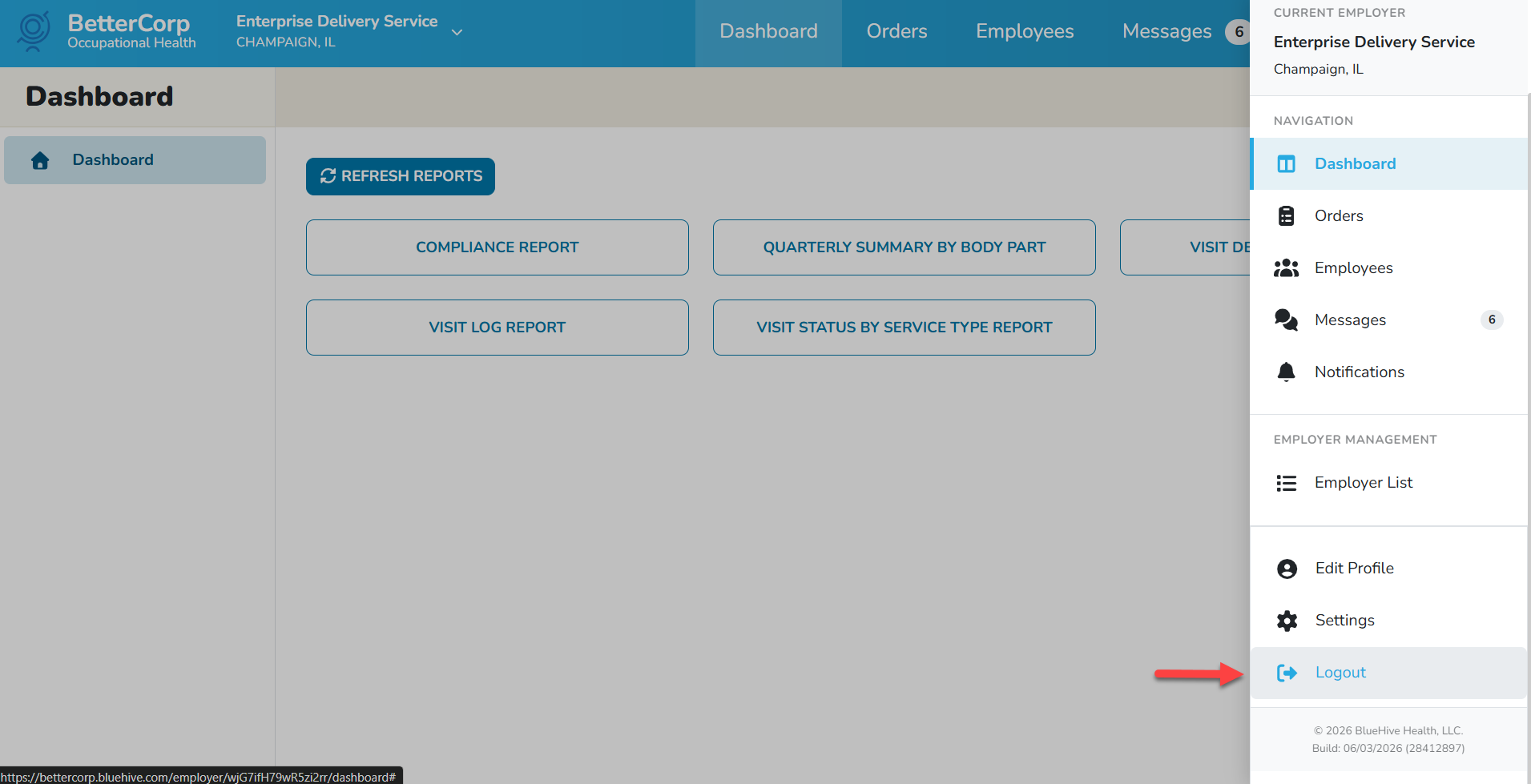
Click on the user profile name in the upper right hand corner of the screen. A drop down menu with the option to logout displays. Simply click the Logout button to exit the application.