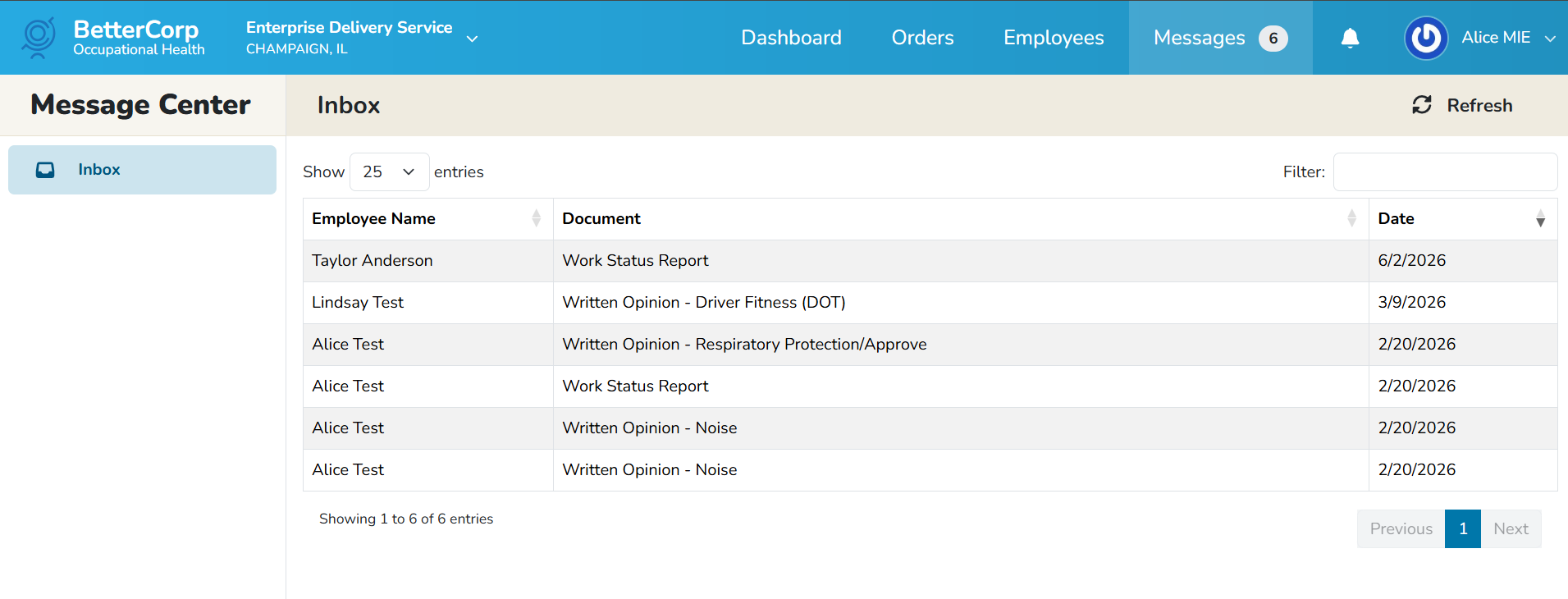
Messages
The Messages tab or Message Center inbox displays a list of employee documents that are shared with the employer. To view messages, click the Messages option in the header. The bubble icon with a number in the header indicates the number of new/unread messages. If a red bubble is not present, all messages have been viewed.
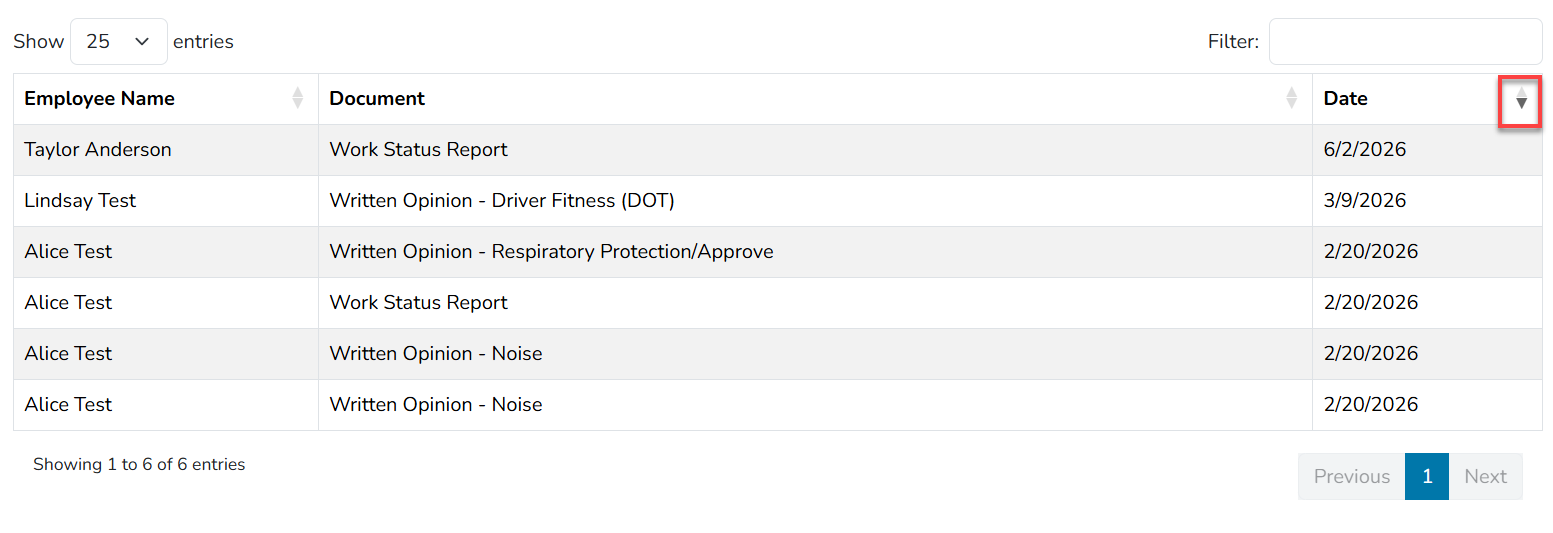
The most current patient/document shared on the employer portal will display at the top of the document list. However, the user can select to sort in ascending or descending order.
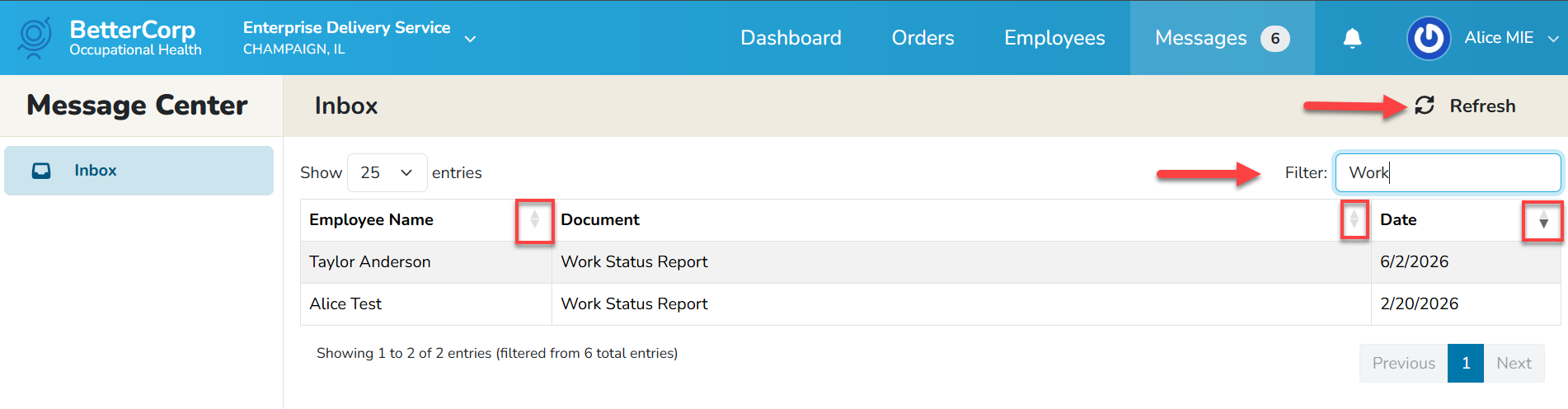
Each column can be sorted in ascending and descending order, or use the filter to search for a keyword(s) contained in the message center document list. To clear the filter, click the refresh icon in the upper right hand corner of the message center inbox.
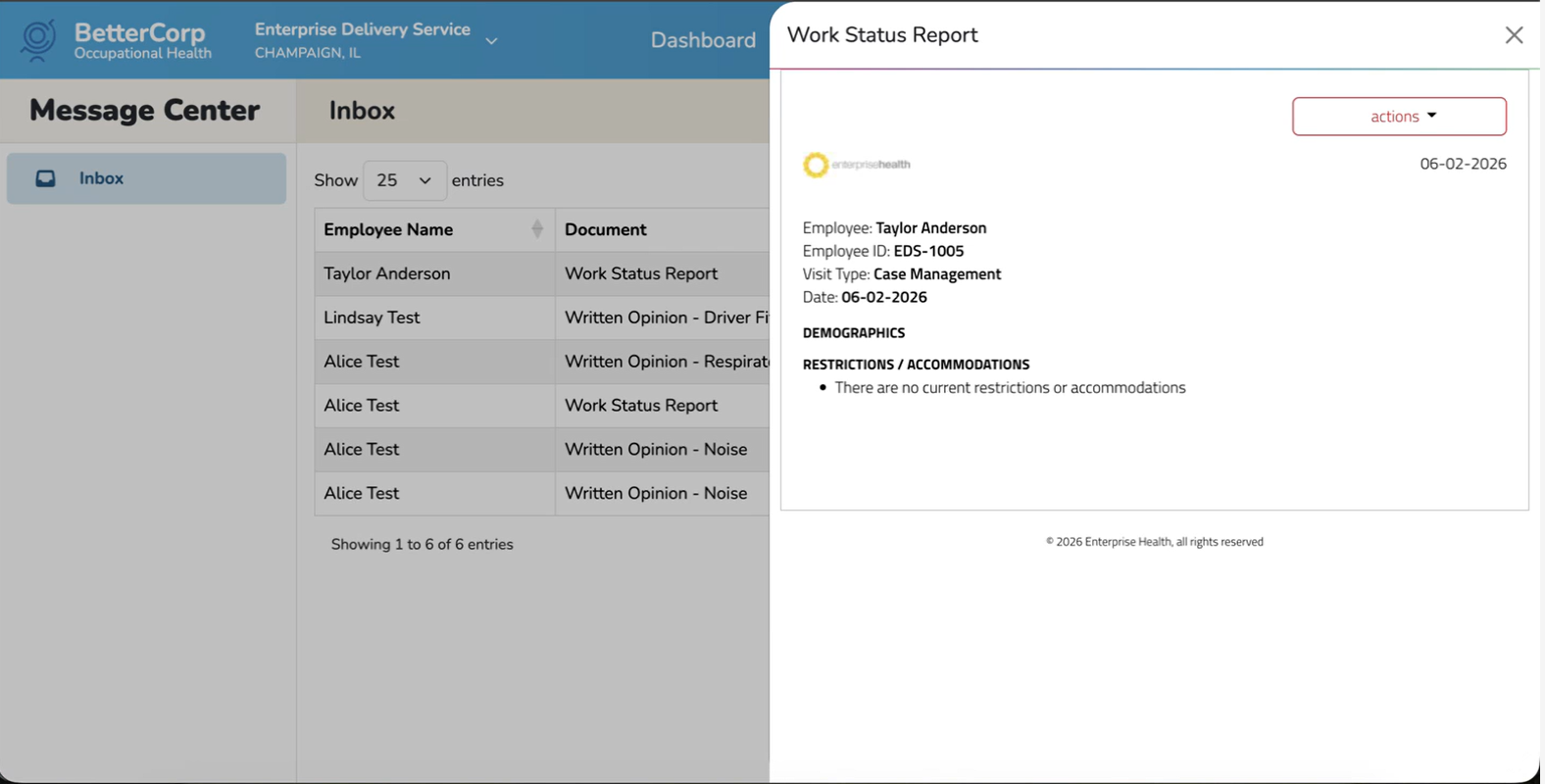
Click on a document name to display the document in a right hand pop out window. The* action* button drop down display options to print or download the document to PDF. Click the “X” to close out of the pop out window.