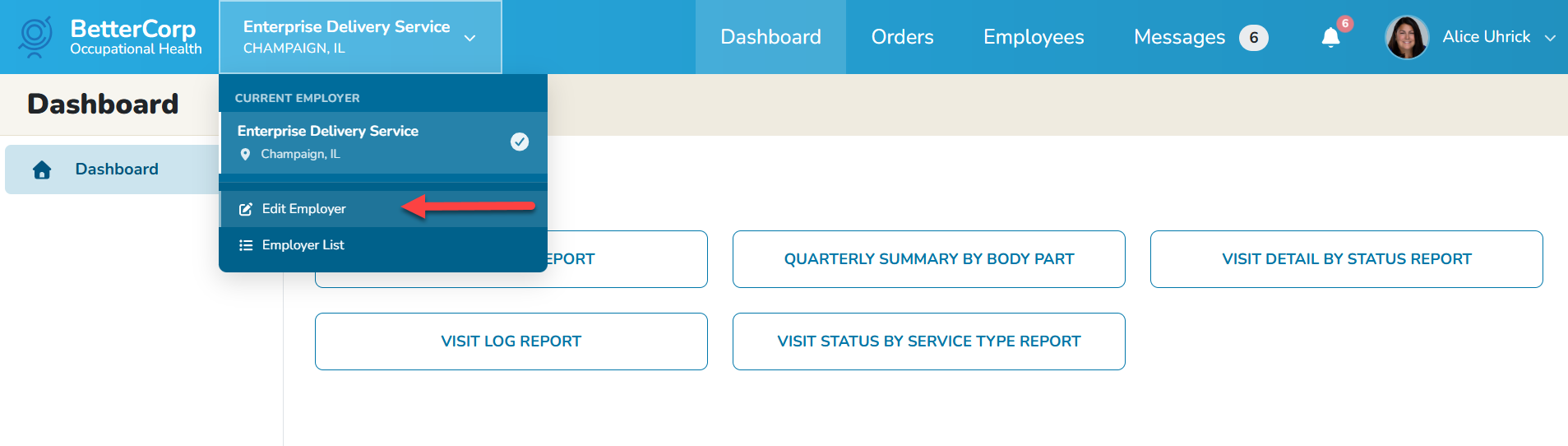
To configure user security and manage various preferences, System Administrators must be granted Edit Employer access within the Employer Portal. This specific level of access enables administrators to
- Configure Order Preferences, provided this feature is enabled for the employer.
- Oversee user access and portal permissions.
- Manage additional settings, including Single Sign-On (SSO) configurations.
Edit Employer Access
From the Employer Portal toggle, ensure that the portal you wish to set up/edit is selected. Once selected (designated by a check mark next to the employer name), click the Edit Employer option.
Order Preferences
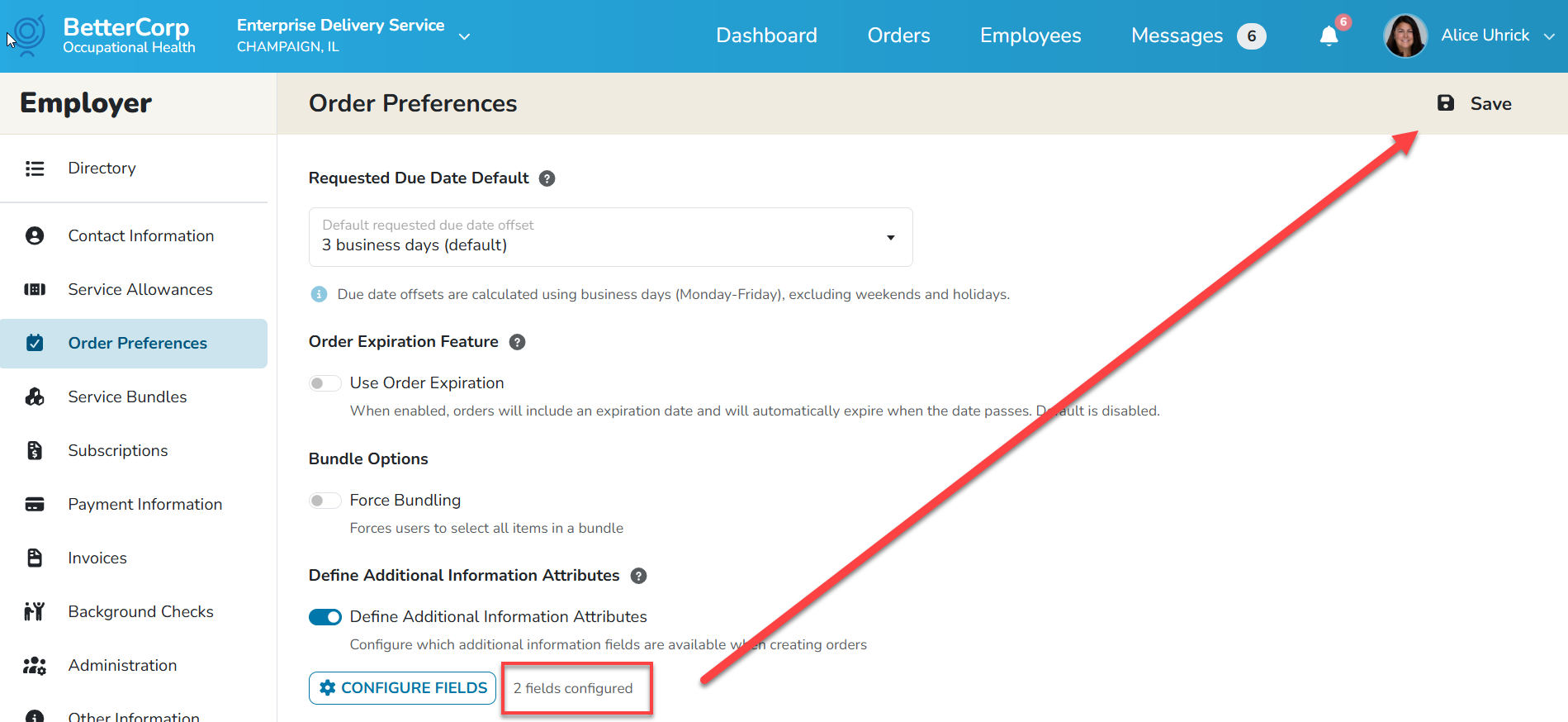
Current Order Preferences include: Requested Due Date Default, Order Expiration Feature, Bundle Options, and Define Additional Information Attributes.
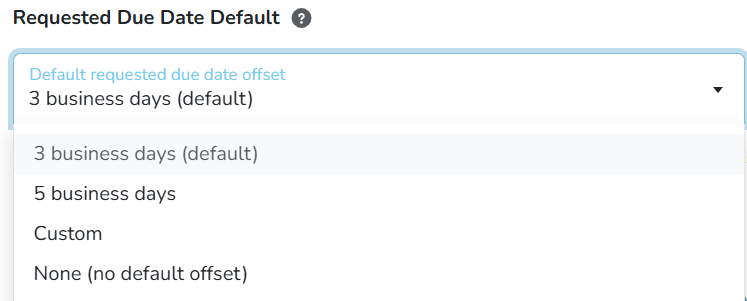
Requested Due Date Default
The Requested Due Date Default**** will default to 3 business days from the current date, when new orders are created. Administrators can change the default 5 days, define a custom date or not set a predefined due date.
Order Expiration Feature
The Order Expiration Feature is Off by default and not currently a feature that is enabled or available for use with the Enterprise Health Employer Portal-powered by BlueHive.

Bundle Options
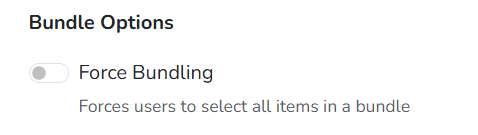
Bundle Options is set to Off by default and not currently a feature that is enabled for use with the Enterprise Health Employer Portal-powered by BlueHive. When turned on, employers may select individual order items from the bundle/deal for ordering rather than being forced to select all items in the bundle/deal. Ala-carte order items may still be added individually and not affected by this order preference.
Define Additional Information Attributes
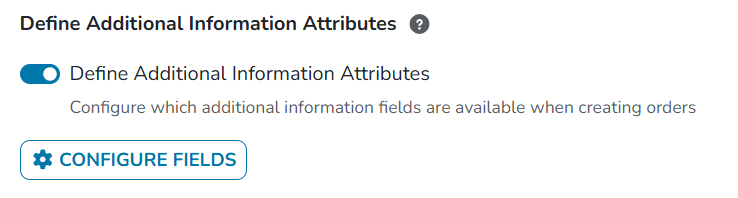
When a portal is initially set up, administrators should Define Additional Information Attributes. When enabled a Configured Fields button will appear. When clicked, the user will be prompted to select “additional fields” that will display in the employee registration screen and/or the order screen.
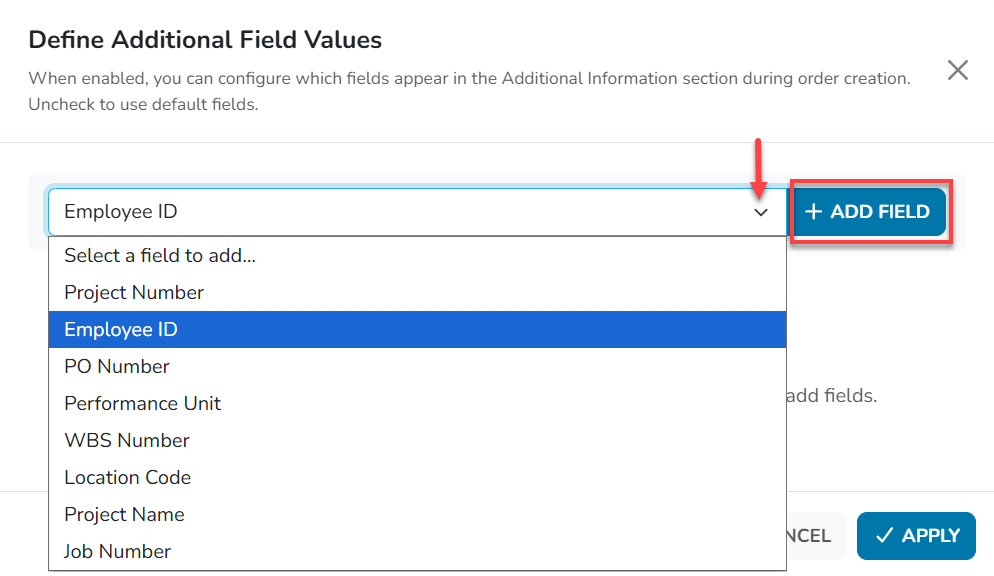
Select from a predefined drop down list of supported additional fields, then click the Add Field button.
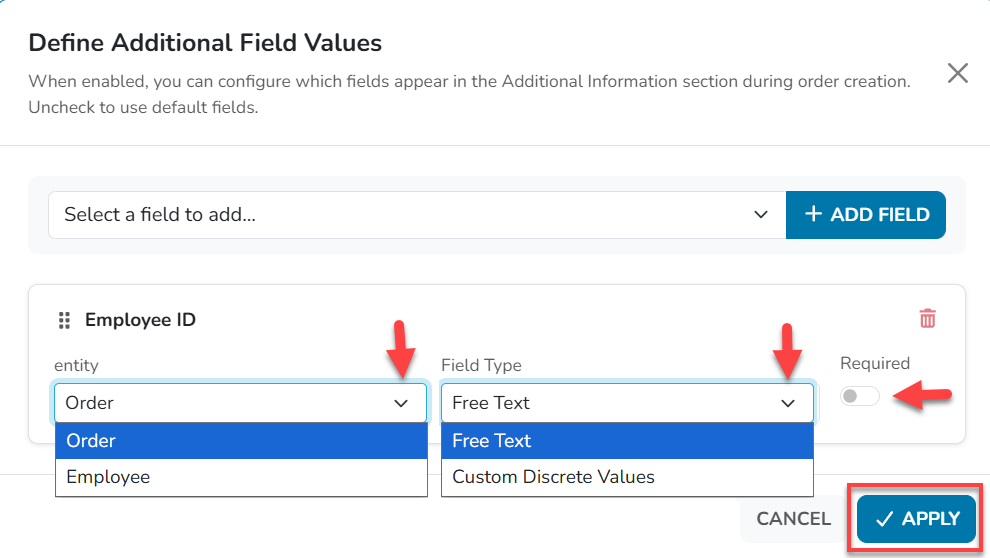
Identify the “entity” in which the field should display. The options are the Employee (registration screen) or the Order (Order Screen). Then select the “field type”. The options are Free Text or Custom Discrete Values. If the field should be required by all users, then toggle the Required switch to on. By default all additional fields will not be required. When done, click the Apply button.
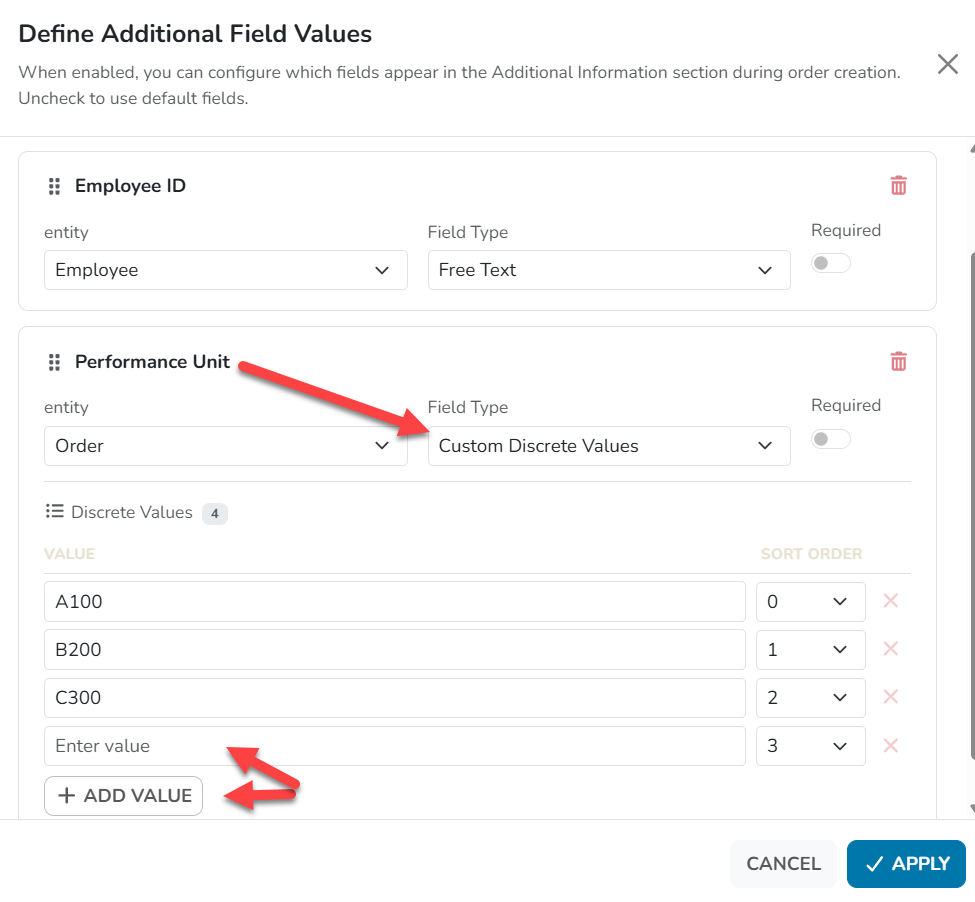
When adding Custom Discrete Values, the ADD VALUE button will display. Click on the button to display a blank line to “Enter value”. Type the value, for example, A100. To add another, click the ADD VALUE button again. Continue to add as many values as needed. By default the sort order will display in the order entered, however, administrators may change the sort order that will display to the end user, by changing the sort order drop down. Click the red X to remove a Discrete Value if necessary. Click the Apply button when done.
Important: Save your work!!
When the configuration tool is closed, the administrator will see confirmation of the number of fields configured. Then SAVE your work!
Update Individual Security Settings
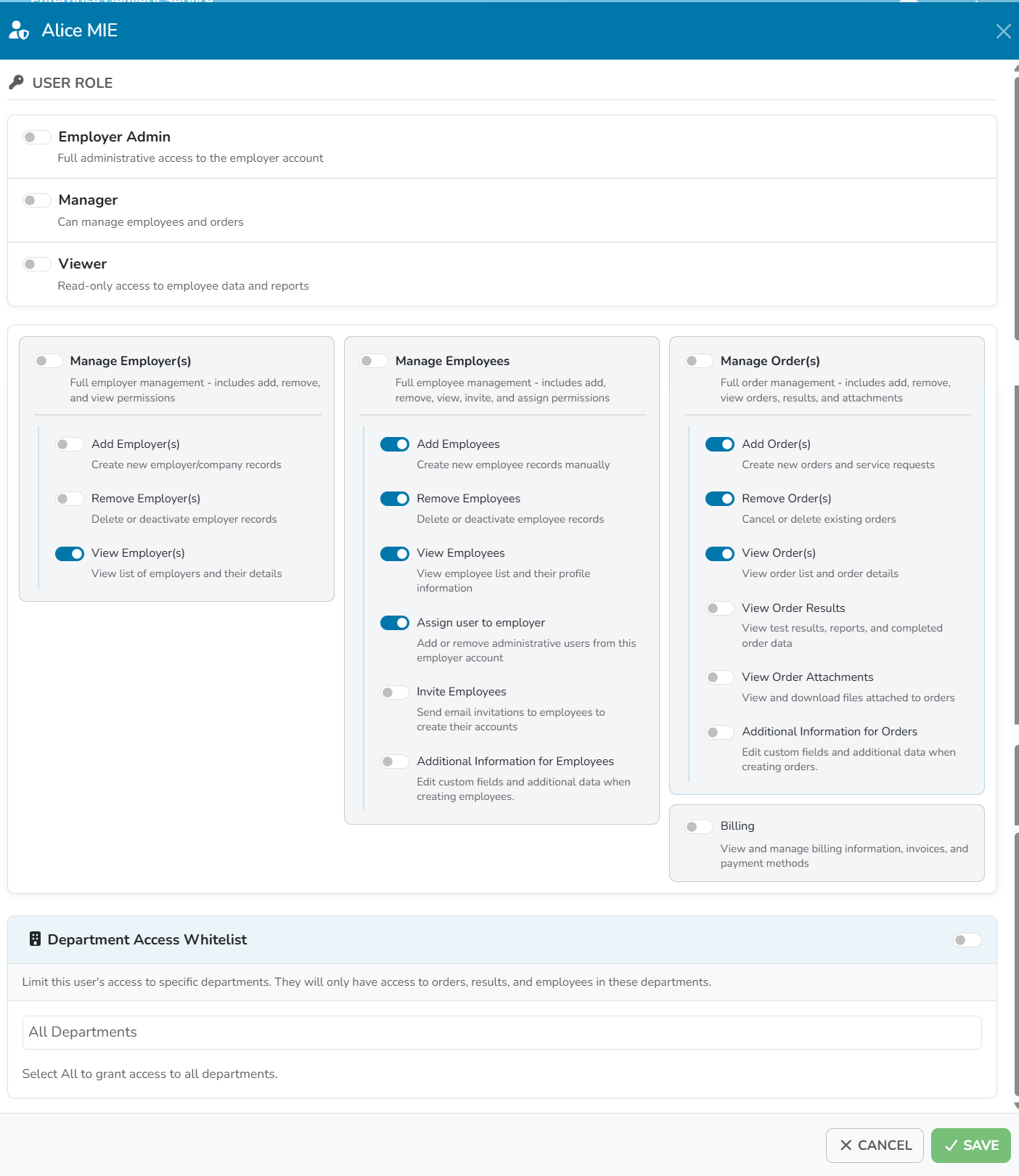
It is recommended that if employer specific Additional Information definitions have been created, that user’s security settings for “Additional Information for Employees” and ‘Additional Information for Orders" be turned off. When turned off, users will no longer be able to see the “Add Additional Information” buttons and will ONLY be able to enter information in the predefined fields configured in the “Define Additional Information Attributes” order preference.
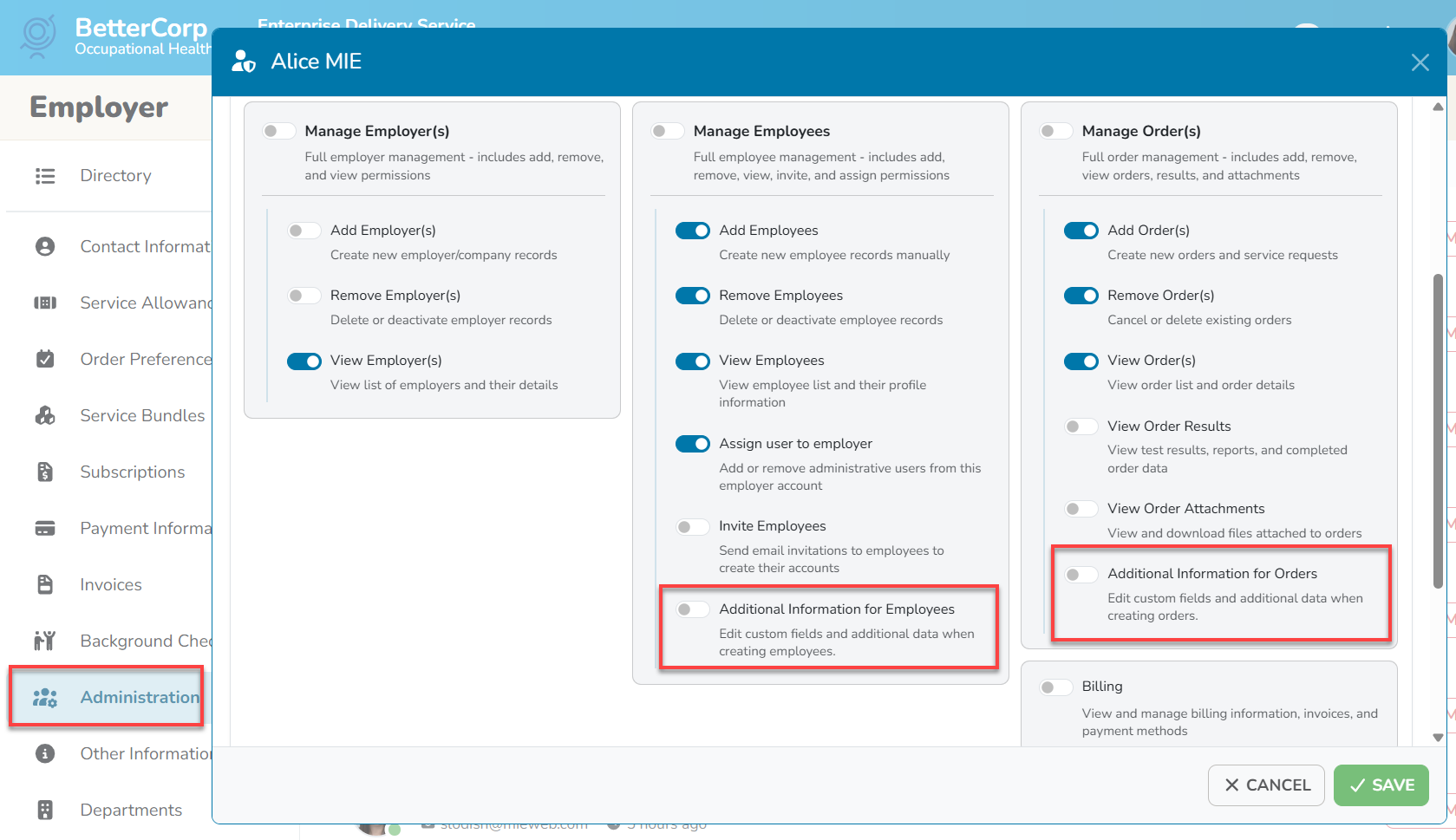
For example:
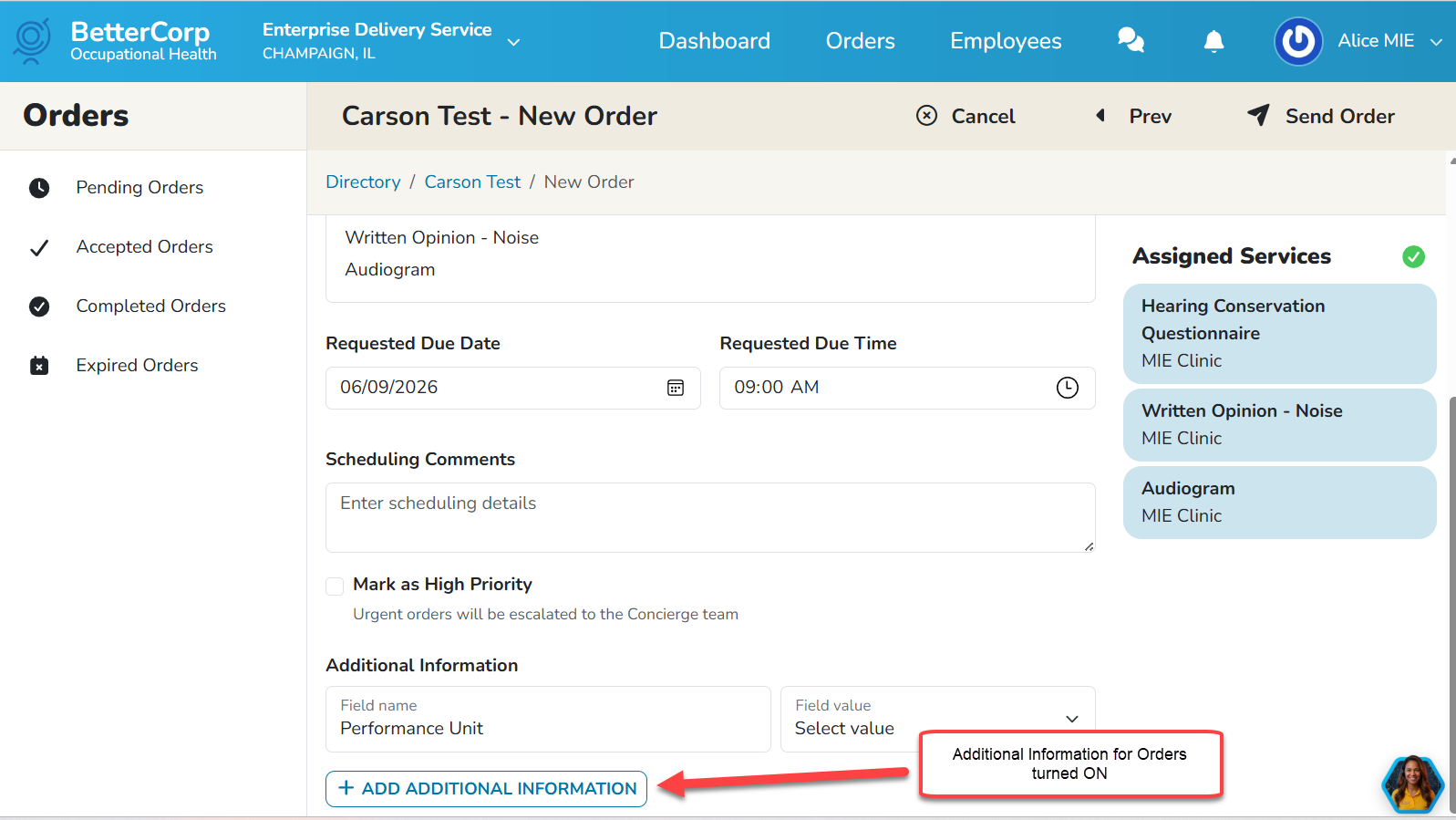
When turned on, the user can add other “Additional Information”, however, this information will NOT be sent to Enterprise Health and therefore recommended that this button be turned off and not allow users to collect any other information.
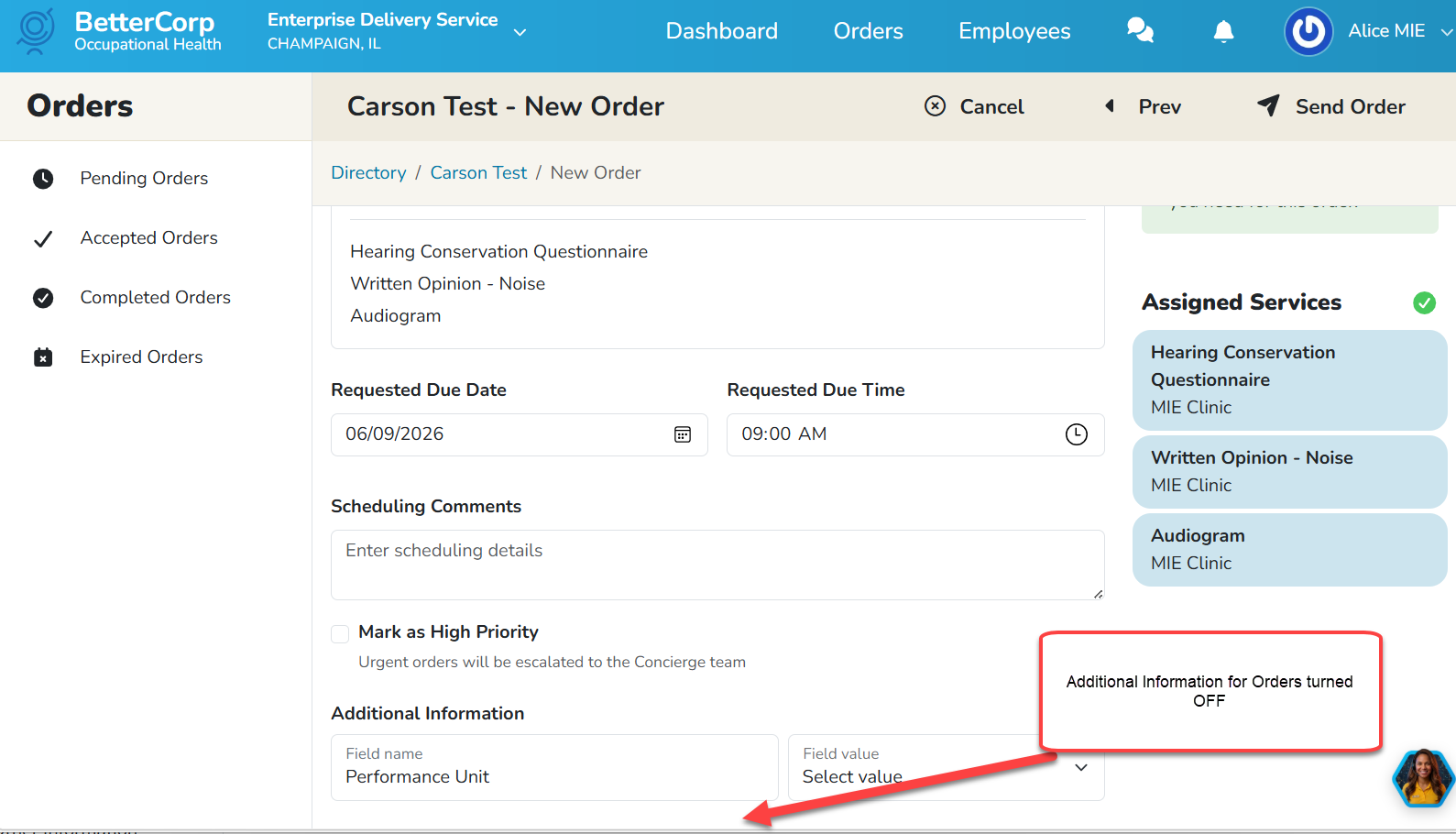
When off, the user does not have the option to add additional information, which is appropriate since this information would not be sent to Enterprise Health.
Other Information Module
General
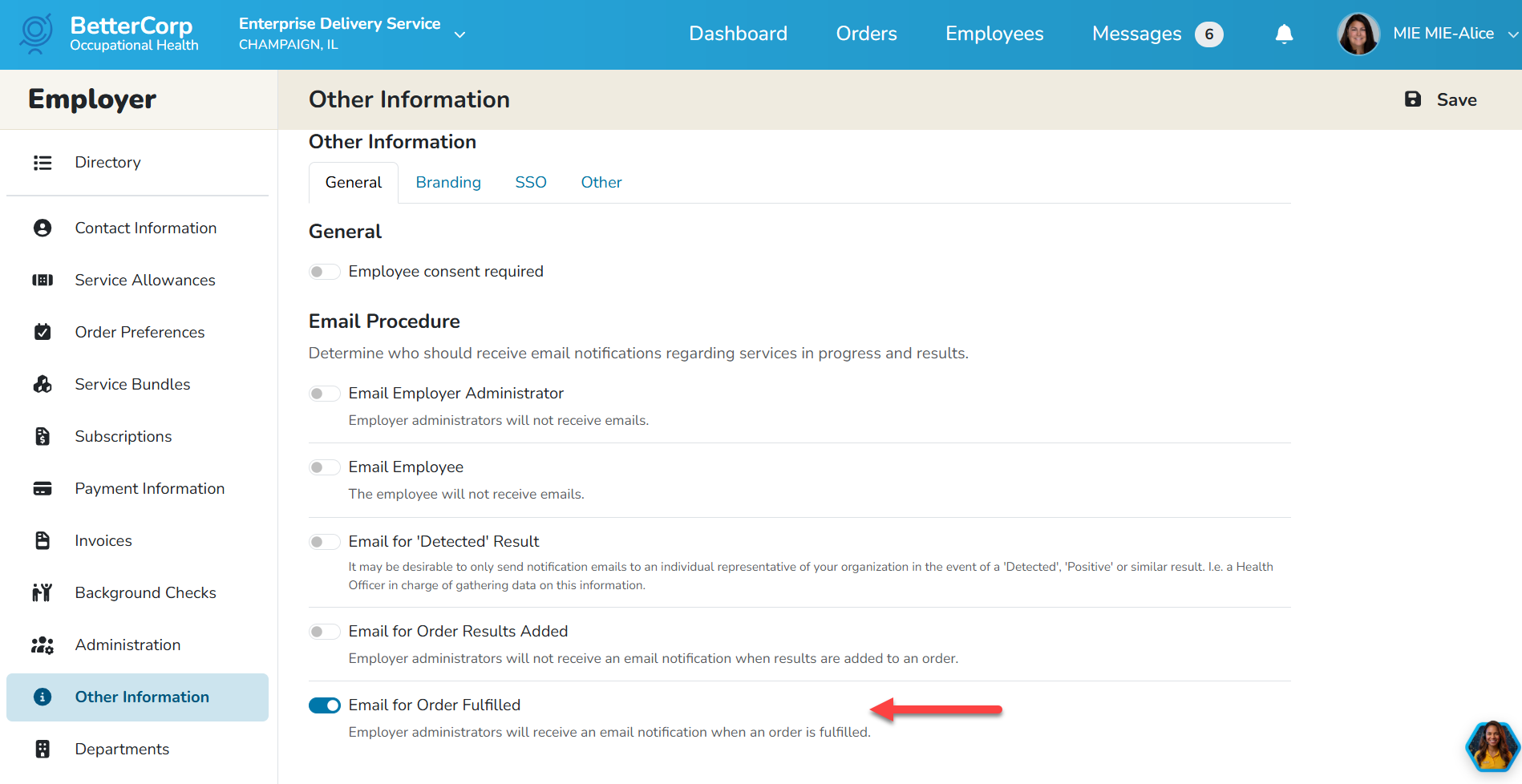
Select**** the General tab to confirm Email Procedures. All emails for the Employer Portal are generated out of Enterprise Health. However, to close the loop on workflows on the portal, orders will be marked as fulfilled when the medical clearance or written opinion is completed in Enterprise Health. If desired, BlueHive can send an email to the employer notifying them an email has been fulfilled, this is also an indication that a new medical clearance or written opinion is available for viewing in the message center. Ensure all email options are turned off, except for Email for Order Fulfilled.
Branding
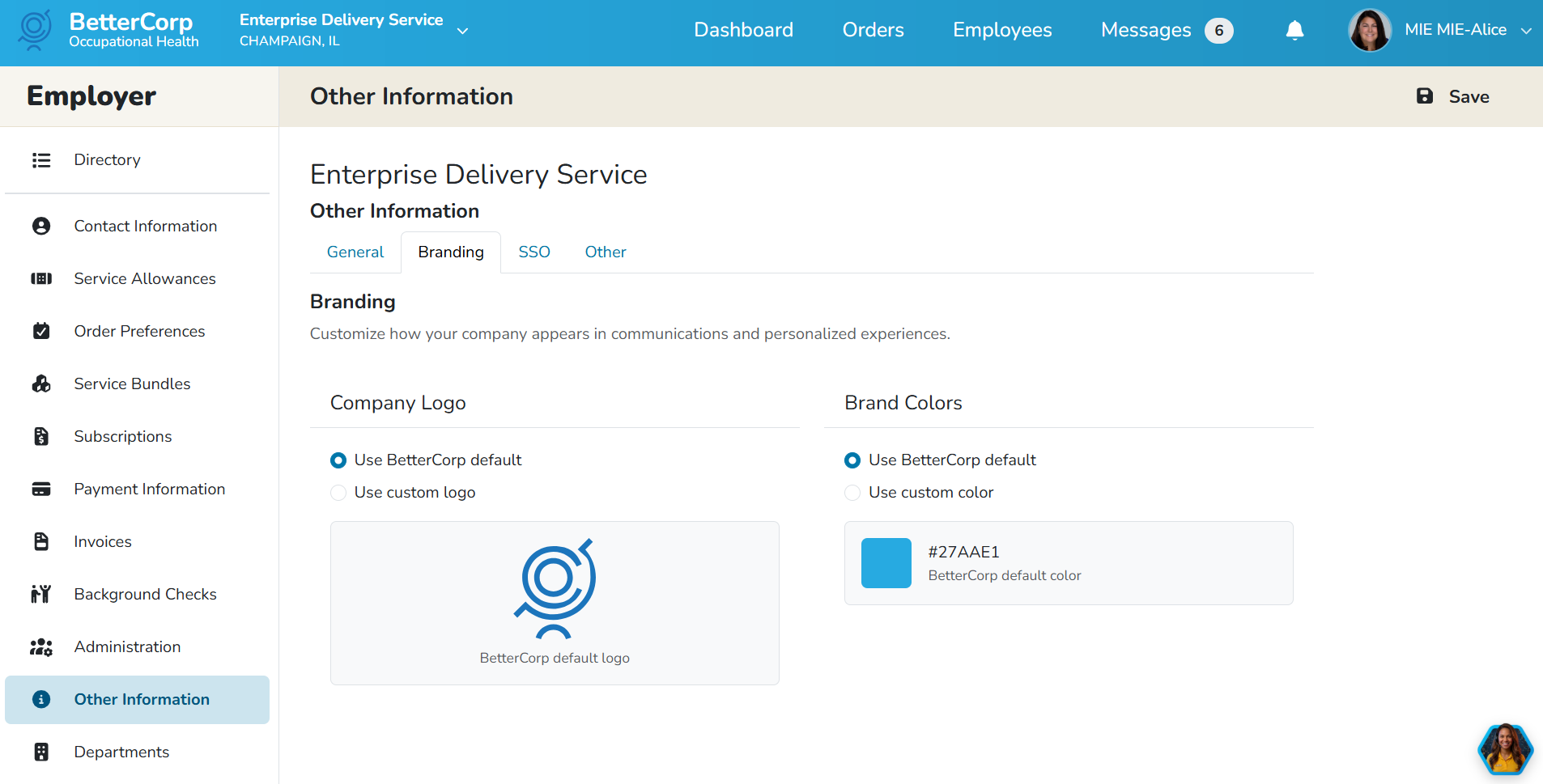
Branding logos and colors are typically configured when the employer portal is activated by the Enterprise Health team, however, the logo and colors can be updated by administrators at any time in the Other Information->Branding module.
Single Sign On (SSO)
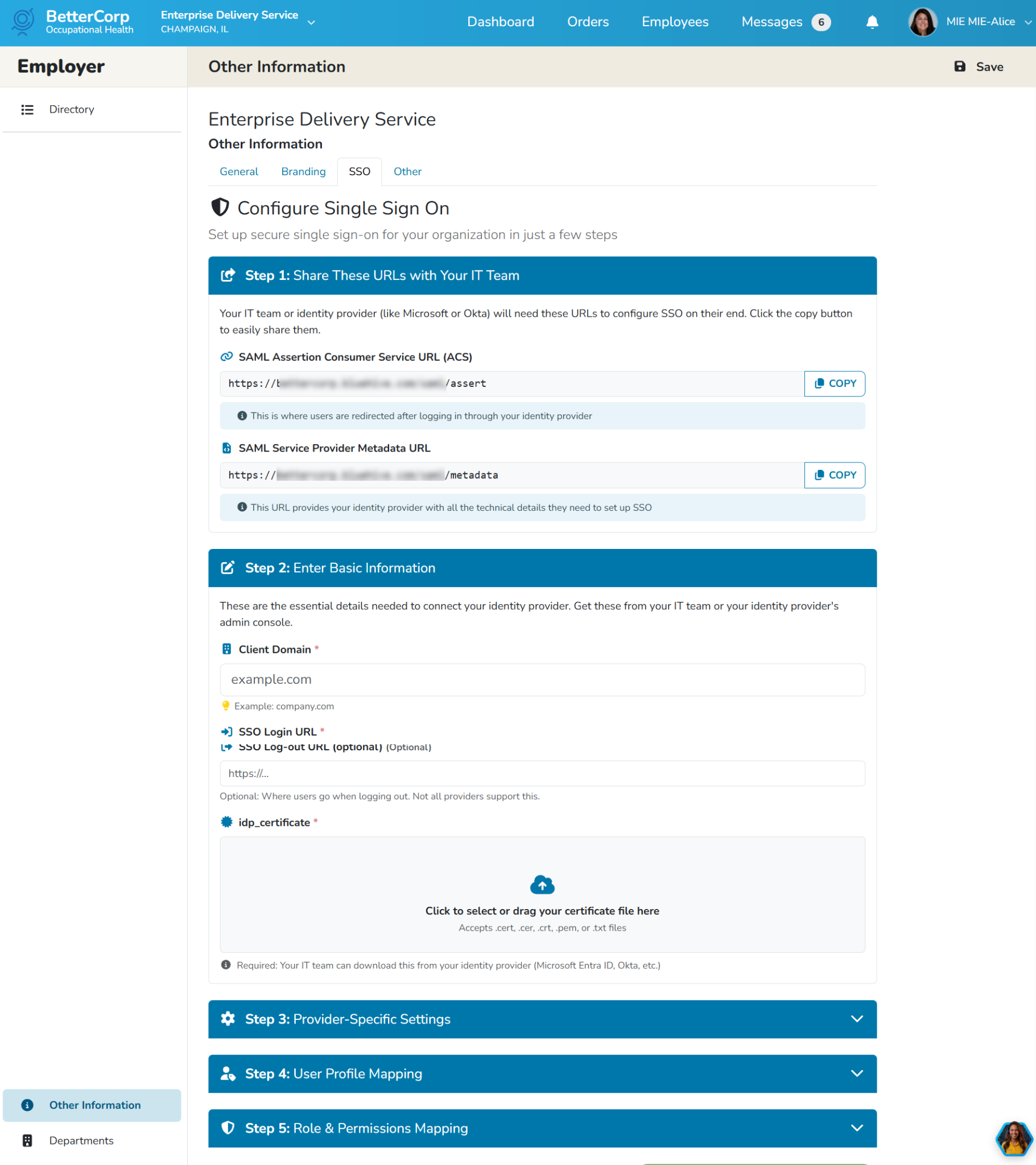
Single Sign on (SSO) can be configured by the employer IT department once the employer portal has been activated by the Enterprise Health Team.
Other
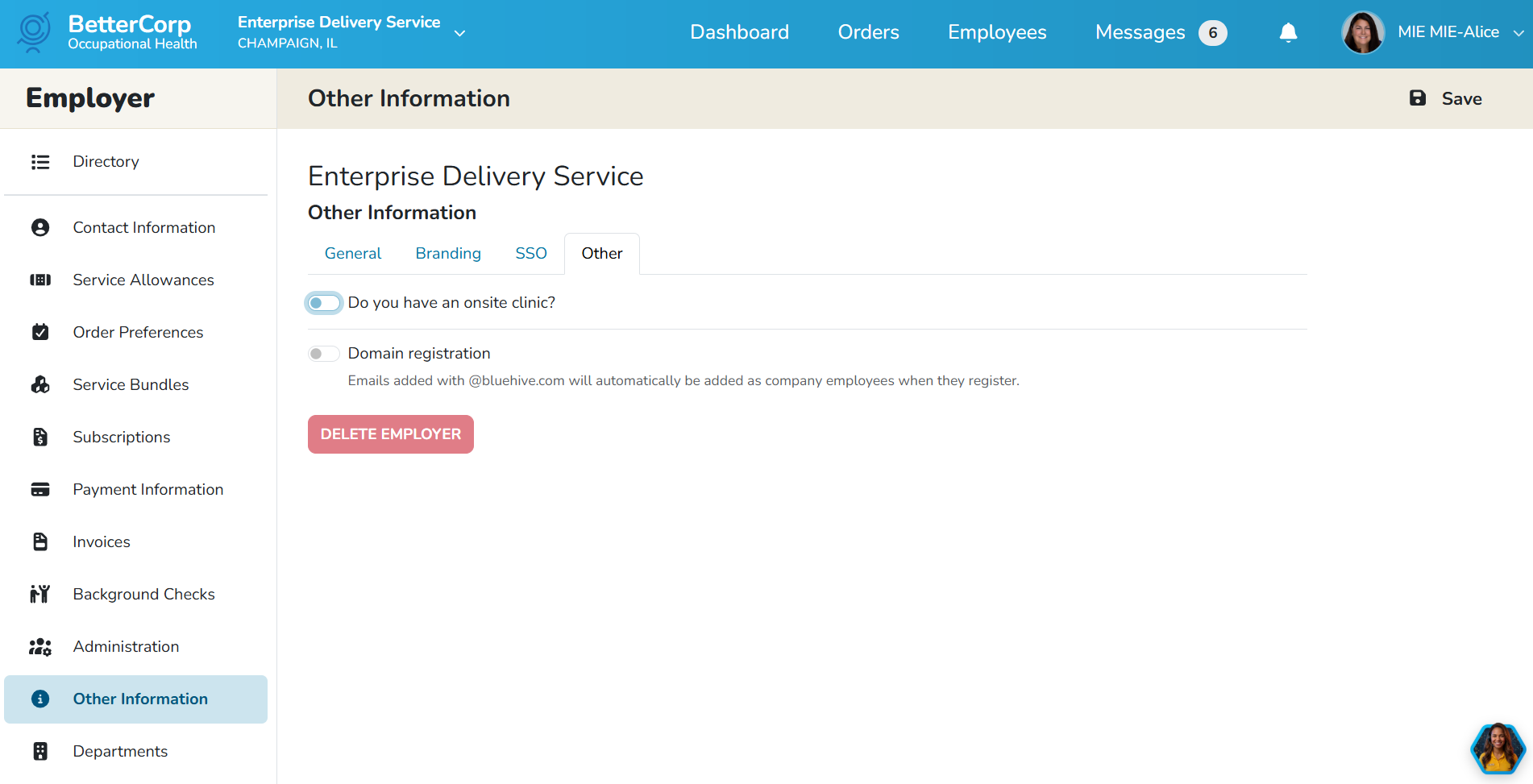
The Other module allows administrators to Delete the Employer Organization. Please consult with an Enterprise Health representative before deleting an Employer.
Administration
Individual user securities are maintained in the Administration sidemenu. Click the Remove button to delete a user’s access. Click the Edit button to give or edit user securities.
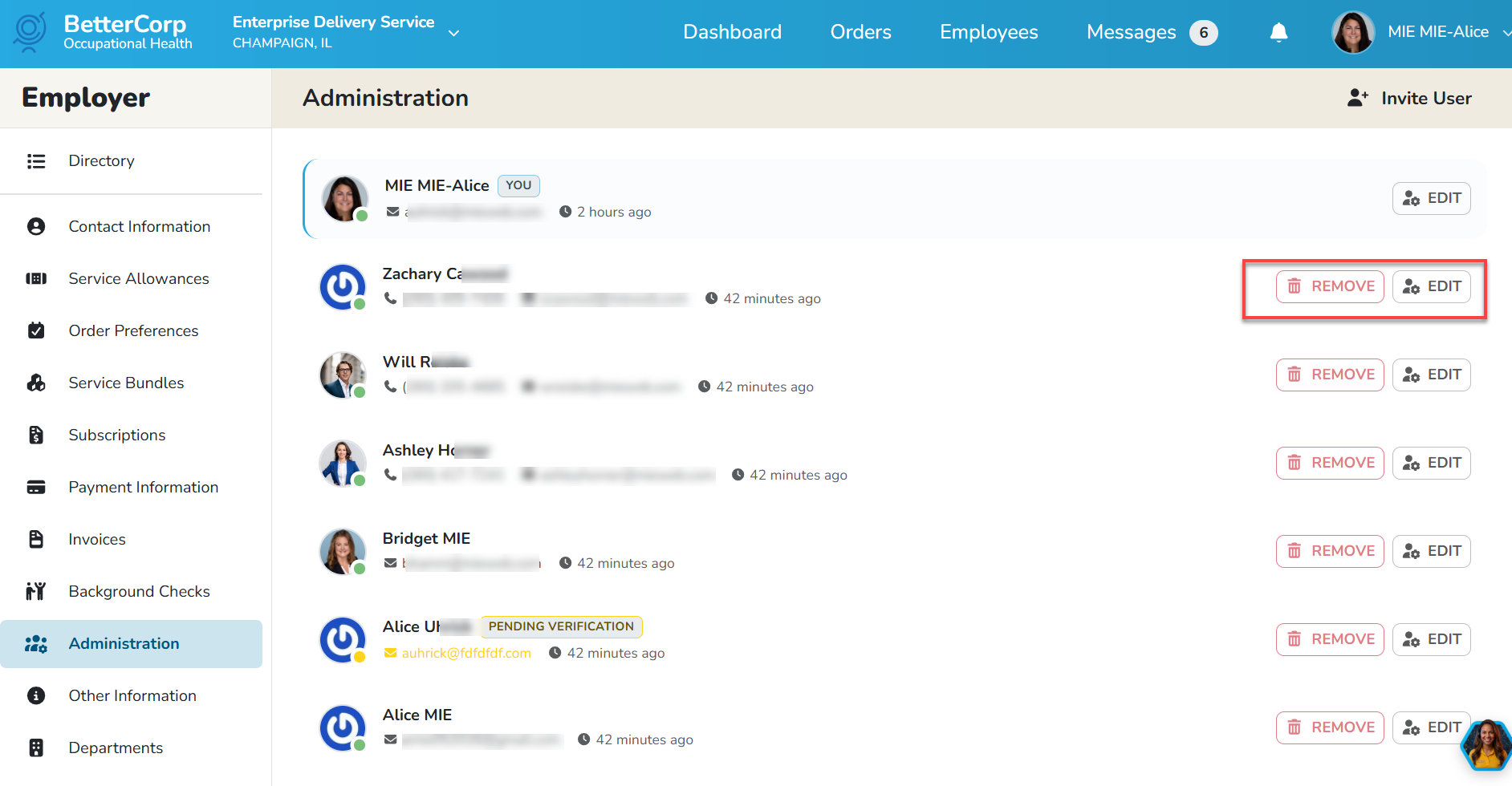
Individual securities can be selected at an individual level, or by role (Employer Admin, Manager, View). The securities for each employer group may differ based on module use.