
The Enterprise Health system supports three ways for users to sign in:
- Single sign-on (SSO) through the organization’s identity provider (strongly preferred wherever possible),
- Local accounts accessed by pickup codes emailed to users with links to log into the system (typically used for pre-hire candidates for completing pre-placement workflows), and
- Local accounts with a username and password managed within Enterprise Health (typically used for contractors, Licensed Independent Practitioners (LIPs), and other non-employees requiring access).
This guide describes the password rules that apply to local accounts and the system settings administrators use to configure them, along with the related controls for account lockout, session timeout, inactive accounts, and account monitoring.
Password rules are configured system-wide, so organizations can align Enterprise Health with their own information security policies (for example, a minimum password length of 16 characters, or password rotation every 90 days).
Which Accounts Use These Rules
- Single sign-on (SSO) users: Users who sign in through the organization’s identity provider (SAML 2.0) do not have a Enterprise Health password. Password length, complexity, expiration, and multi-factor authentication are enforced by the organization’s identity provider, so the settings in this guide do not apply to them. SSO is the recommended sign-in method for employees and staff.
- Applicant and self-registration portals: Applicants do not receive a password, and their username is not shared. Depending on how the portal is configured, an applicant either receives a pickup code to claim a chart that was created for them, or uses a self-registration link that opens a one-time session to enter their information. No password is created in either case. These types of accounts are available for portal-access only and strongly discouraged for clinical logins.
- Local accounts: Users who cannot use SSO (for example, non-employee providers or contractors without an organizational login) receive a local Enterprise Health account. All of the password rules in this guide apply to local accounts. These types of accounts are available for portal-access or clinical login. It is strongly encouraged that Multi-Factor Authentication (MFA) is configured for these accounts, especially if they are granted clinical login access.
Password Rules for Local Accounts
First-Time Passwords
Enterprise Health does not generate passwords. When an administrator creates a local account (or resets a password), the administrator sets a temporary password and sets the Password Expire Date to the current day and time. The temporary password is therefore expired immediately, and the user must create their own unique password the first time they sign in. For step-by-step instructions, see Reset User Passwords.
Password Complexity and Length
Minimum length and character requirements are each controlled by a separate system setting, so they can be configured independently:
- Minimum total number of characters (passwords can be up to 50 characters)
- Minimum number of numeric characters
- Minimum number of special characters
- The list of special characters that are allowed
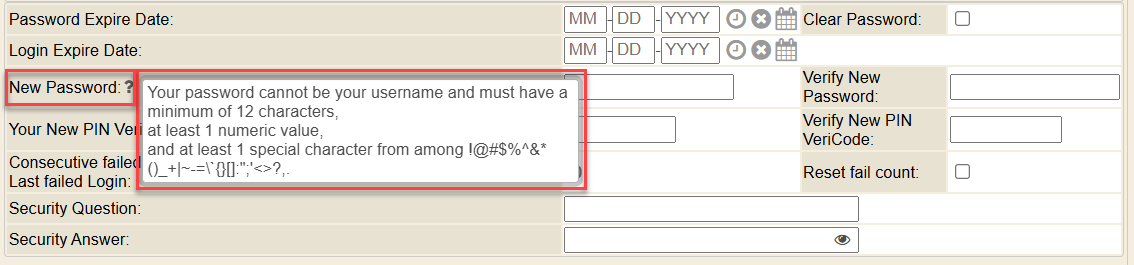
When an administrator sets or resets a password, hovering over the help bubble next to the New Password field shows the password criteria currently configured for the system.
Password Expiration (Aging)
Local passwords expire after a configurable number of days (for example, 90). When a password expires, the user is prompted to create a new password at their next sign-in.
Email Notification
Enterprise Health sends an email notification to the user when a password reset is requested. The notification is sent only to the email address on file for that user. The email layout can be customized by the organization.
Password Storage
Passwords are never stored in plain text. Enterprise Health stores passwords using one-way salted hashing with the SHA-512 algorithm, so stored passwords cannot be decrypted.
Account Lockout, Session Timeout, and Inactive Accounts
- Failed sign-in lockout: After a configurable number of failed sign-in attempts, the account is locked. An administrator must reset the password and check the Reset Fail Count box to unlock it (see Reset User Passwords).
- Session timeout: Sessions end automatically after a configurable period of inactivity, and the user must sign in again.
- Inactive accounts: Accounts that have not been used for a configurable number of days can be disabled automatically. See Disabling Inactive User Access & Accounts. This is most useful for local accounts; for SSO users, access is typically removed in the organization’s identity provider.
- Login expiration: For temporary users, a Login Expire Date can be set on the user record so access ends automatically on that date.
Configuring Password Settings
- Navigate to the Control Panel.
- Go to the System Settings menu tab.
- Search for the system setting you want to change (see the table below). Click the Edit link of the setting, found in the Options column to the right of the page.
- Update the Value according to your organization’s password policy.
- Provide a Reason for the change, and click the Change button.
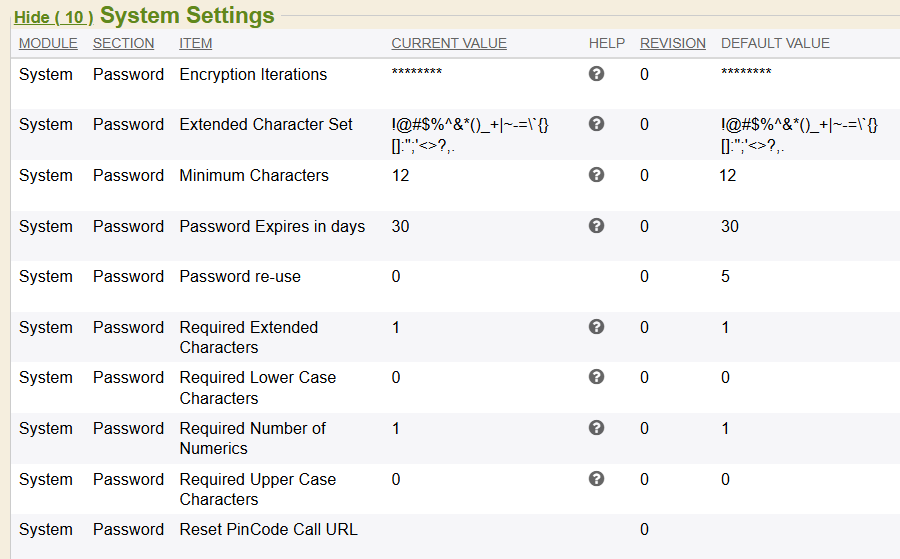
| Control | System Setting | What It Does | Default |
| Minimum length | System, Password, Minimum Characters | Minimum total number of characters in a password | 12 |
| Numeric characters | System, Password, Required Number of Numerics | Minimum number of numeric characters | 1 |
| Special characters | System, Password, Required Extended Characters | Minimum number of special characters | 1 |
| Allowed special characters | System, Password, Extended Character Set | The list of special characters users may use | !@#$%^&*()_+|~-=\`{}[]:";'<>?,. |
| Password expiration | System, Password, Password Expires in days | Number of days before a local password must be changed | 30 |
| Failed sign-in attempts | System, Login, Max Login Attempts | Number of failed attempts before the account is locked | 5 |
| Session timeout | System, Login, Timeout | Minutes of inactivity before the session ends | 1800 seconds (30 minutes) |
| Inactive accounts | System, Security, Days Inactive | Days of inactivity before the account is disabled by the Disable Inactive Users scheduled job | 30 |
| Multi-factor authentication | WebChart, Login, Use 2FA | Which one-time password methods are offered (HOTP, TOTP, or both) | See MFA guides |
Account Monitoring
Administrators can monitor account activity with the following tools:
- Audit Event Log: Records account and security events, including sign-ins, failed sign-ins, password changes, and changes to user accounts and permissions.
- Click Log: Records each user’s activity within the system.
- User Watch: Shows which users are signed in right now.
The user summary screen in Access Control also shows when the user last signed in and when their last sign-in failed.
Multi-Factor Authentication
Local accounts can also be required to use multi-factor authentication (MFA/2FA) with one-time passwords from an authenticator app or email. For SSO users, MFA is enforced by the organization’s identity provider. For details, see the guides below.